Creating the User Experience and Sound Design
Tasks
- Description → Concept
- Flowboard, Flowchart → Figma
- Screendesign
What makes the platform game exciting and thrilling?
- Platforms have different designs (length, width, height)
- Platforms collapse when you run over them
- Platforms move at a certain speed in a certain time
- Coyote jump (run further beyond the boundary and then jump further?)
- Endless Runner: Character is moved automatically
- Different perspectives, rooms and scenes
Fun:
Is it fun to jump onto a platform?
- Generally: less fun. That's why the platforms can also be breakable after standing on it for a few seconds. That is more exciting and thrilling for the players, because they have to parkour the breakable floors very fast to not lose a character's life.
Rewards and Impact
- Visual rewards popping up in the scene (e.g., stars or collectibles, which are similar to already known game play rewards).
- Sound design helps recognising rewards by creating a auditive scene around the GUI.
- The impact about earning rewards is, that players feel special and want to continue earning lots of rewards.
- By jumping over huge holes between different platforms you could earn points as a player and get rewarded by getting extra points.
Challenge
- Challenges of getting hit and losing points or winning game points by hitting enemies (you can see the numbers falling and rising on the GUI) keeps tension alive.
- Time is also a interesting challenge, because players want to reach their goals in a shorter time or even reach a Game Over state, if they do not reach the goal in a pre-defined time.
- The challenge of huge platforms also brings a lot of pressure, because players do not know how to reach the top of the next platform.
- GUI shows three lives for each character. This brings fun, because the players do not want to let their characters die.
Fantasy
- Characters can jump over huge holes in the platforms via "Gravity Shift". That's the fantasy part, because in most environments on earth that is not possible.
Overview
- Physical Coordination
- Walking on top of the platforms seems to be with gravity from earth.
- Logic and Math
- Gravity is lower than gravity on earth. That seems abnormal for the players, except the players are real astronauts.
- Races and time pressure pattern recognition and exploration
- Players need to complete the level in a specific time. If they do not complete within that time, the players will have to start again. That creates pressure and kind of a team-race.
- Factual Knowledge
- Players know how to use the platforms by completing the tutorial level. It teaches all basic movements and the 'Gravity Shift' Feature.
- Memory
- Players can memorize previous platforms and guess next ones. It creates more game flow and easiness.
Sensation - Game as sense-pleasure
- Players can use all their senses to get to the next platform (e.g., hearing sound effects - wind, footsteps; seeing the range to the next platform; etc.)
Fantasy - Game as make-believe
- Characters can jump over huge holes in the platforms via "Gravity Shift". That's the fantasy part, because on earth that is not possible.
Challenge - Game as obstacle course
- Players sometimes need to help each other reaching the next platform (e.g., by 'Gravity Shift')
Fellowship - Game as social framework
- Players help each other reaching the next platform (e.g., by 'Gravity Shift')
Discovery - Game as uncharted territory
- Players cannot see all the next platforms, because it is out of the window view. But they can guess it from the previous ones. That creates a wish for discovering the next parts of the level.
Immersion and Feedback for Players
What is happening in the game?
- Speech bubbles appear, when somebody voted for a 'Gravity Shift'
- Monologues and dialogues with a foreign alien for storytelling
- Information is provided by a little foreign alien, which tells stories about the current situation and what to do next.
Am I making progress?
- To choose the next level, the player can slide through all the levels on the world map. If the level is locked, the level is greyed out. To unlock them, the players have to complete a level successfully.
How did I do?
- Success screen visualizes successful completed level.
- Success or failure sounds initialize if the players completed the level successfully or unsuccessfully.
What should I do next?
- Information about what to do next is provided by a little foreign alien and cutscenes in between, which tells stories about the current situation and what to do next.
- Players will also know it by the game flow. No further gui is needed.
GUI - Concept
Flowcharts
Error messages can occur at any time which will trigger the Fatal Error screen which leads back to the main menu. When loading a level, a Level Loading Error screen can occur which will lead back to the Level Selection screen. These screens are not included in the flowchart since they would overcomplicate the chart.
Main Menu
Level Selection
Level
Figma Prototype
INFO
The Figma prototype can be downloaded here.
Screens
Easy and Simple
- The games target group is between 8 and 99 years old, that is why an easy, understandable structured screen design is very important.
Less is more
- Less options to choose makes it easier for the players to do so. That is why the players cannot find a screen full with options to choose.
- The players eyes are guided through the user-flow.
- First they see three options (buttons) to choose from.
- Only then a sidebar appears and offers more options to choose.
Startup Screen
Layout
Implementation - Version 1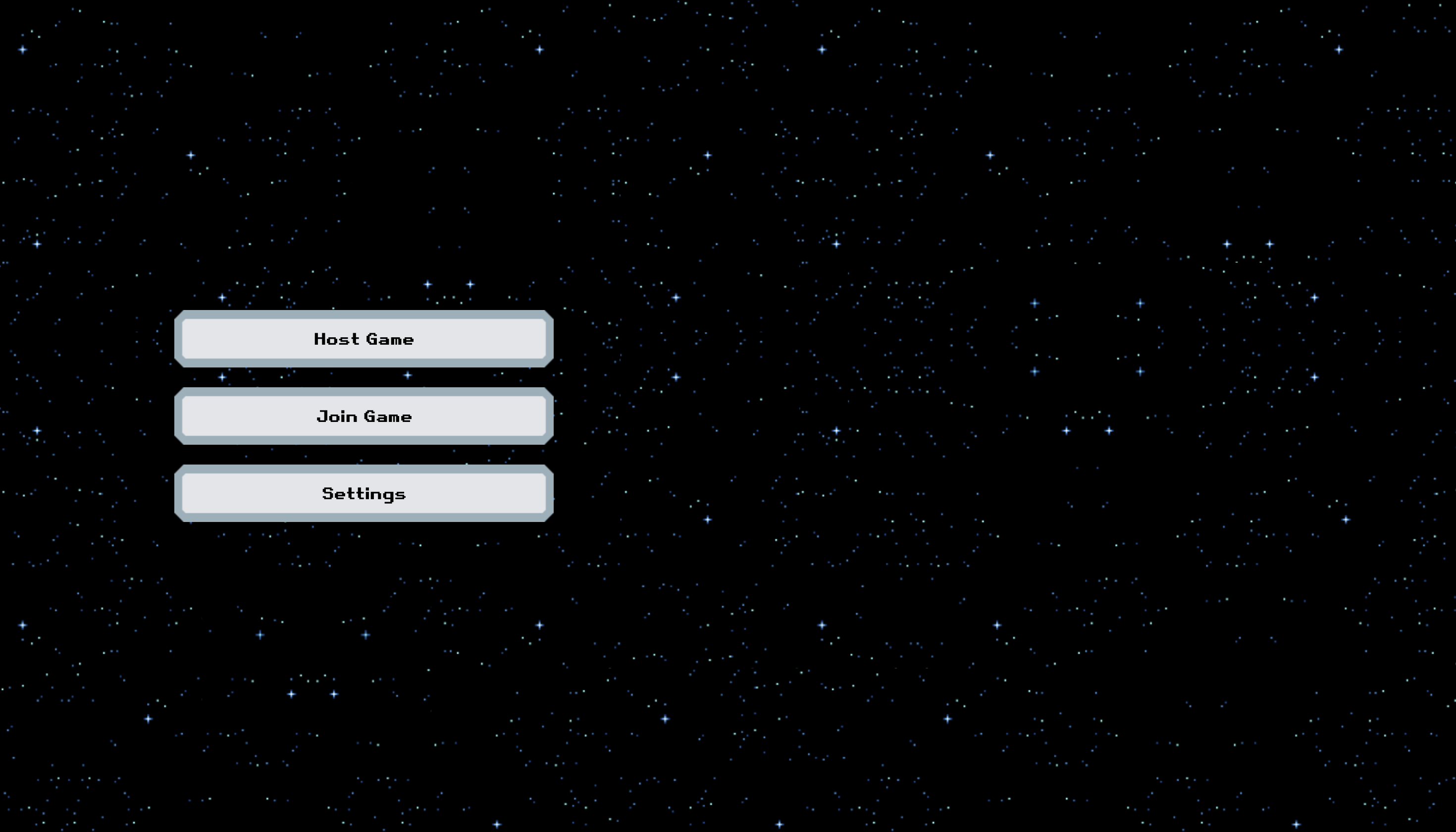 Space colors like dark grey, white and silver can be associated with the stars (background image).
Implementation - Version 2:
- Cutscene
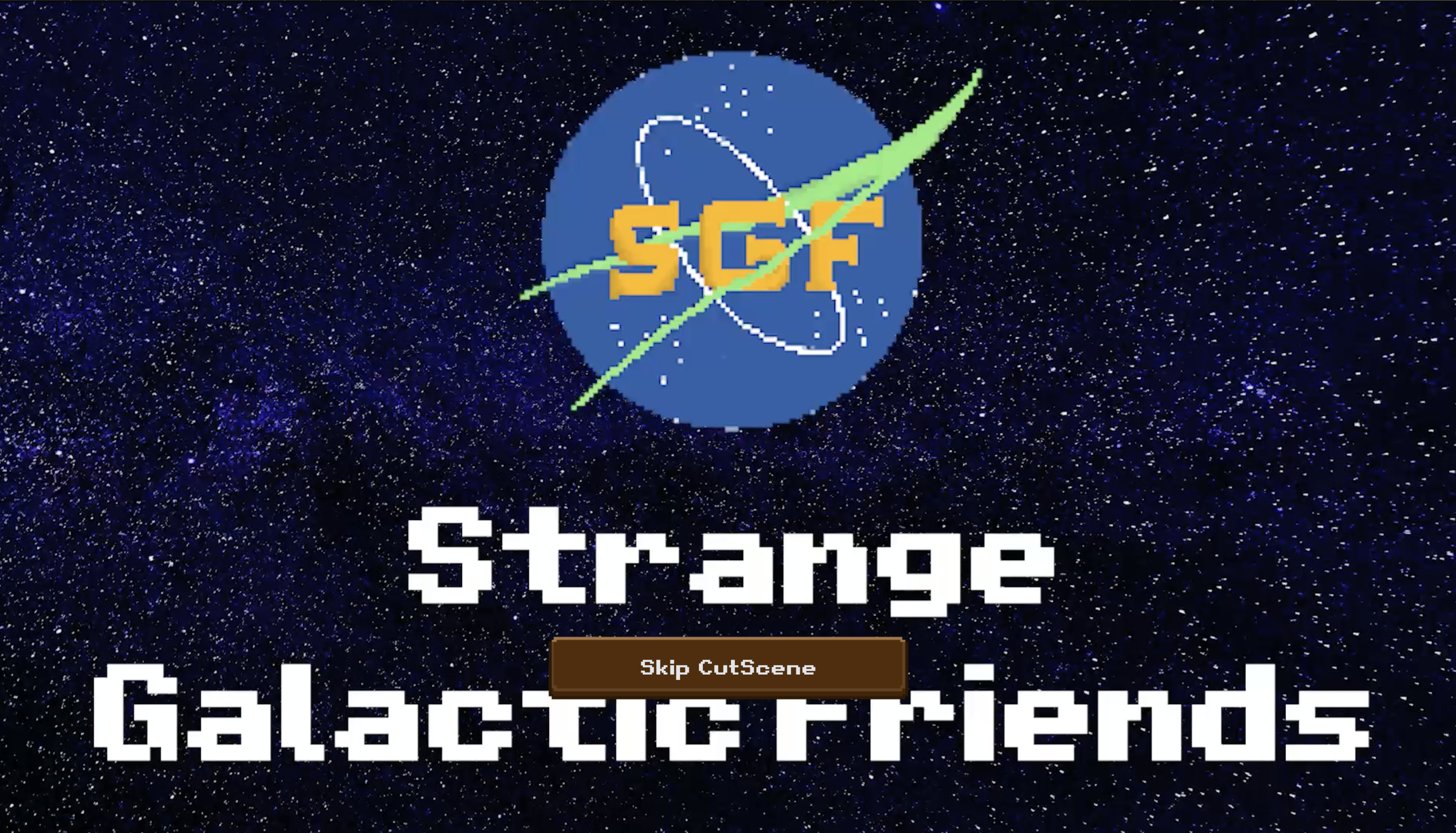
Brown as the main button color fits better into the game's level design. 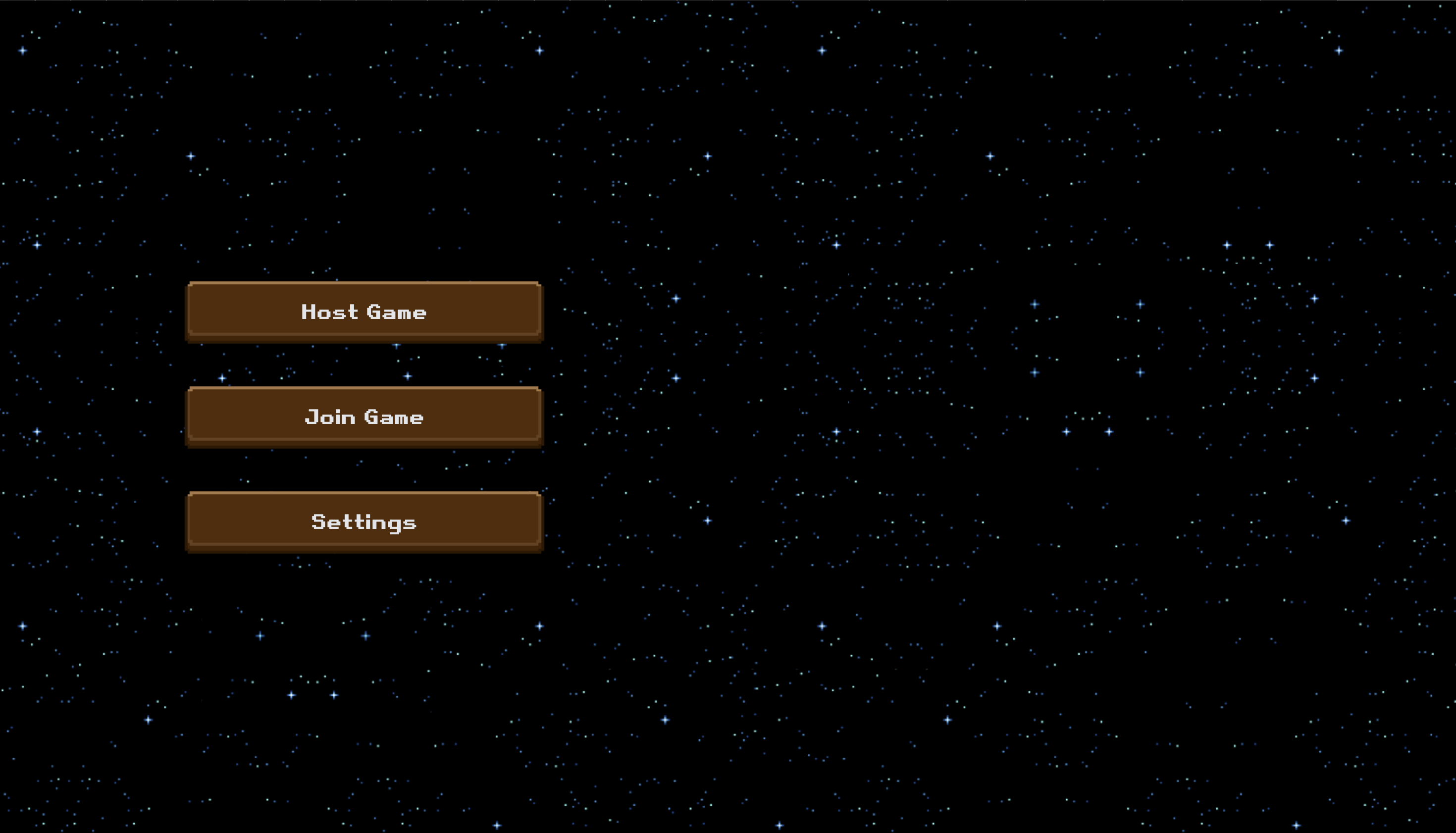
Startup Screen + Create Game
Layout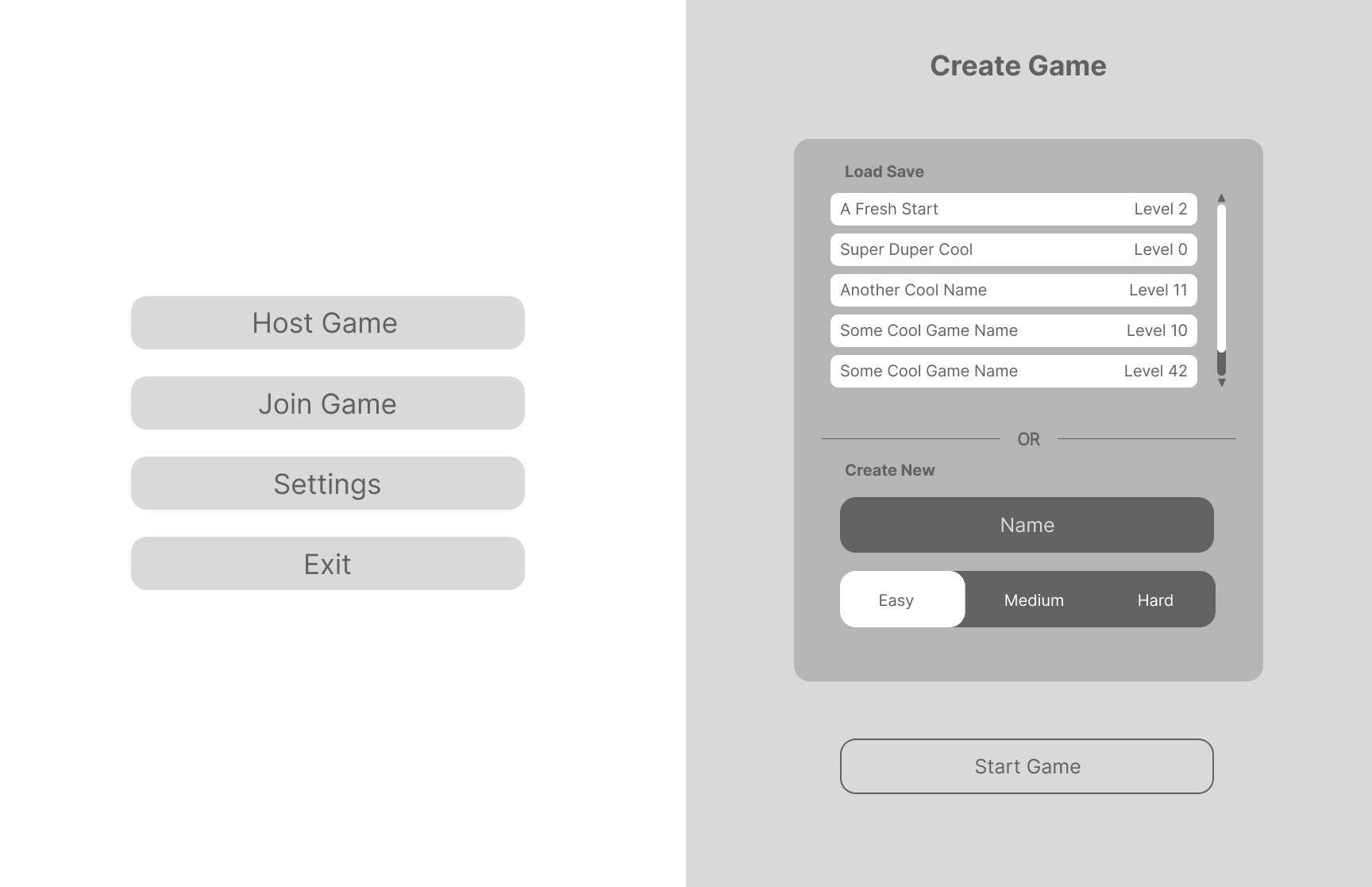
Implementation - Version 1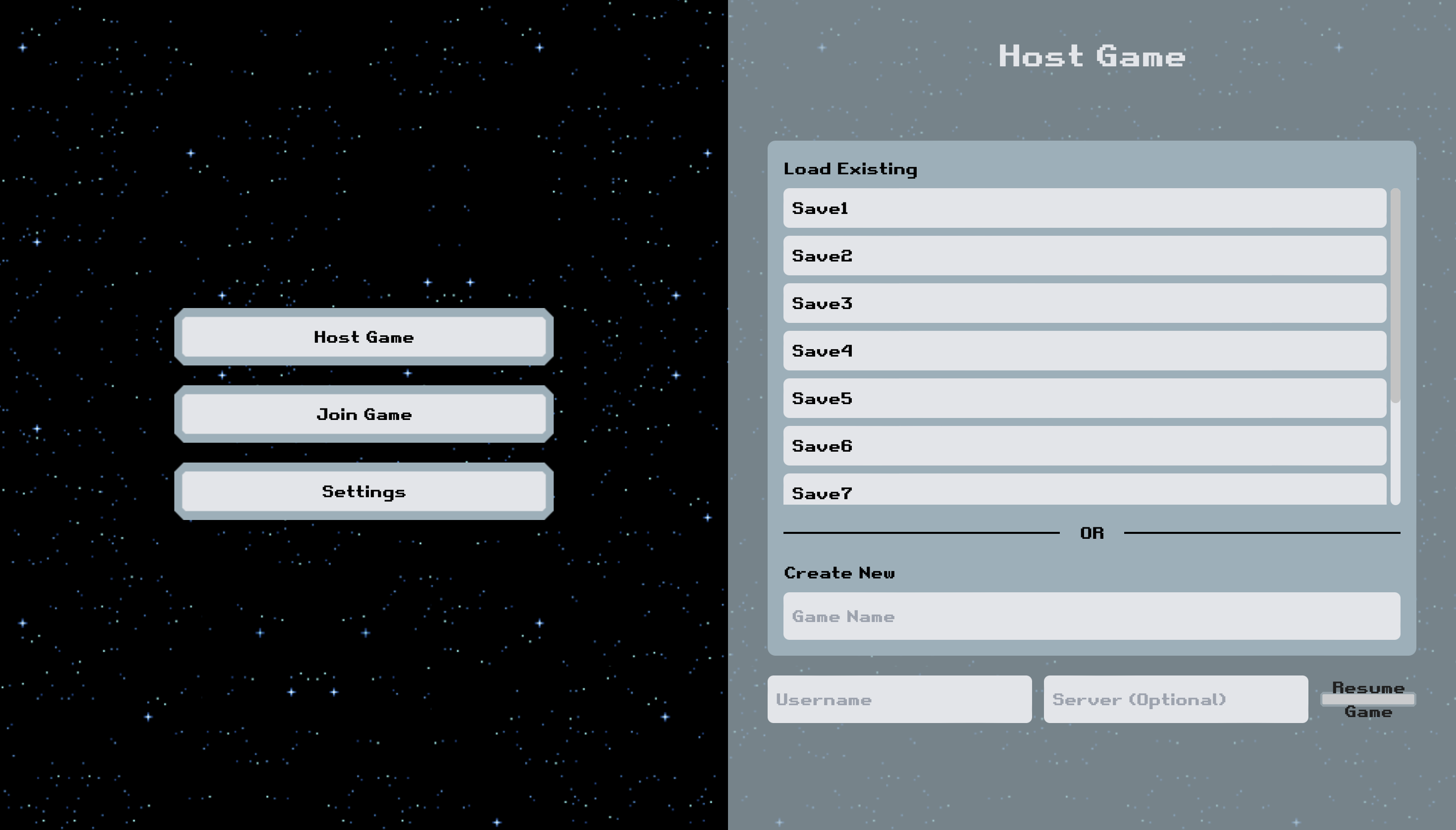
Implementation - Version 2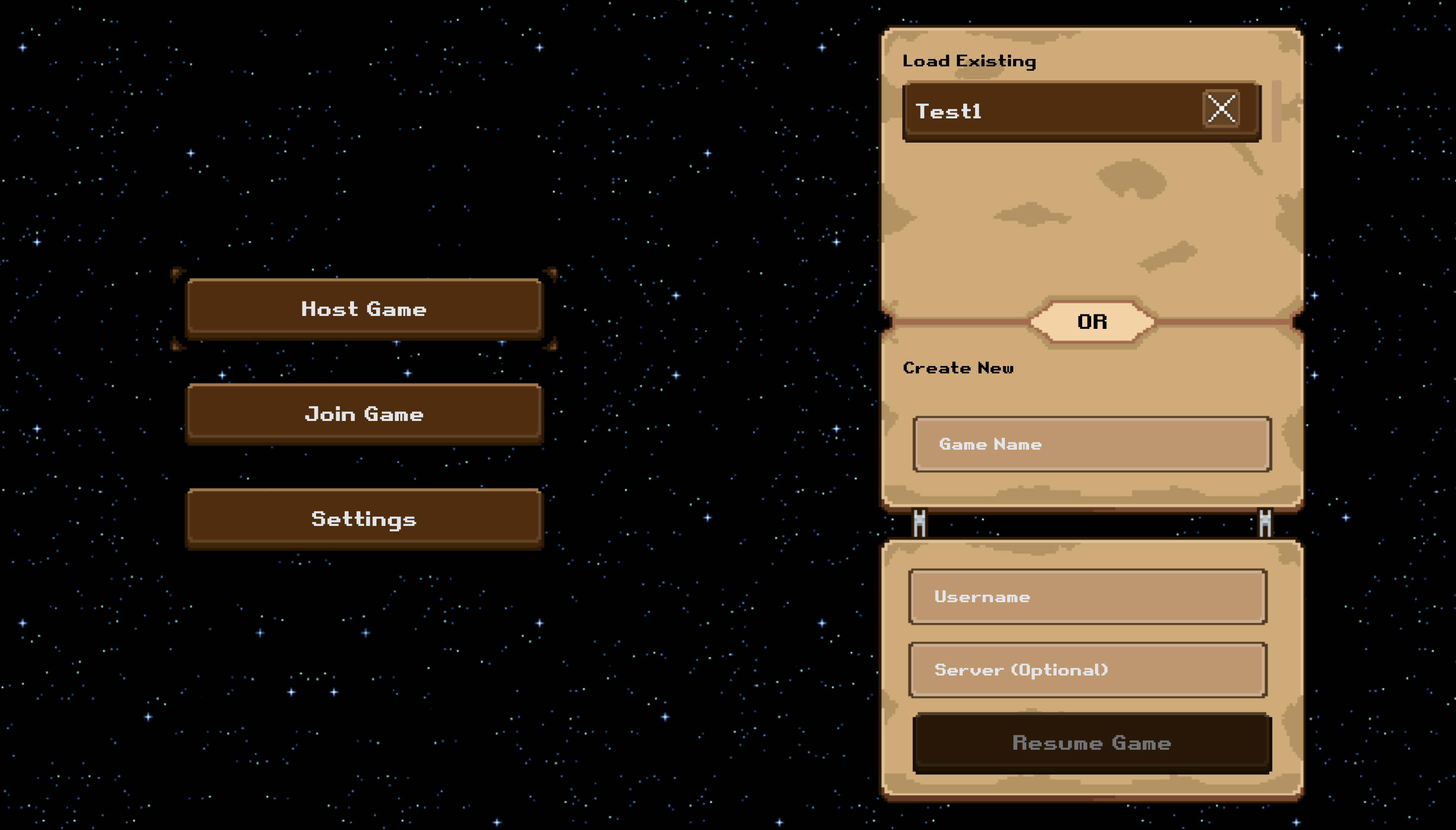 Brown as main color for buttons and an interaction form which looks like a map fit better to the game's level design choices. The form, which looks like an old pirate map emphasises the feeling of discovery.
Startup Screen + Join Game
Layout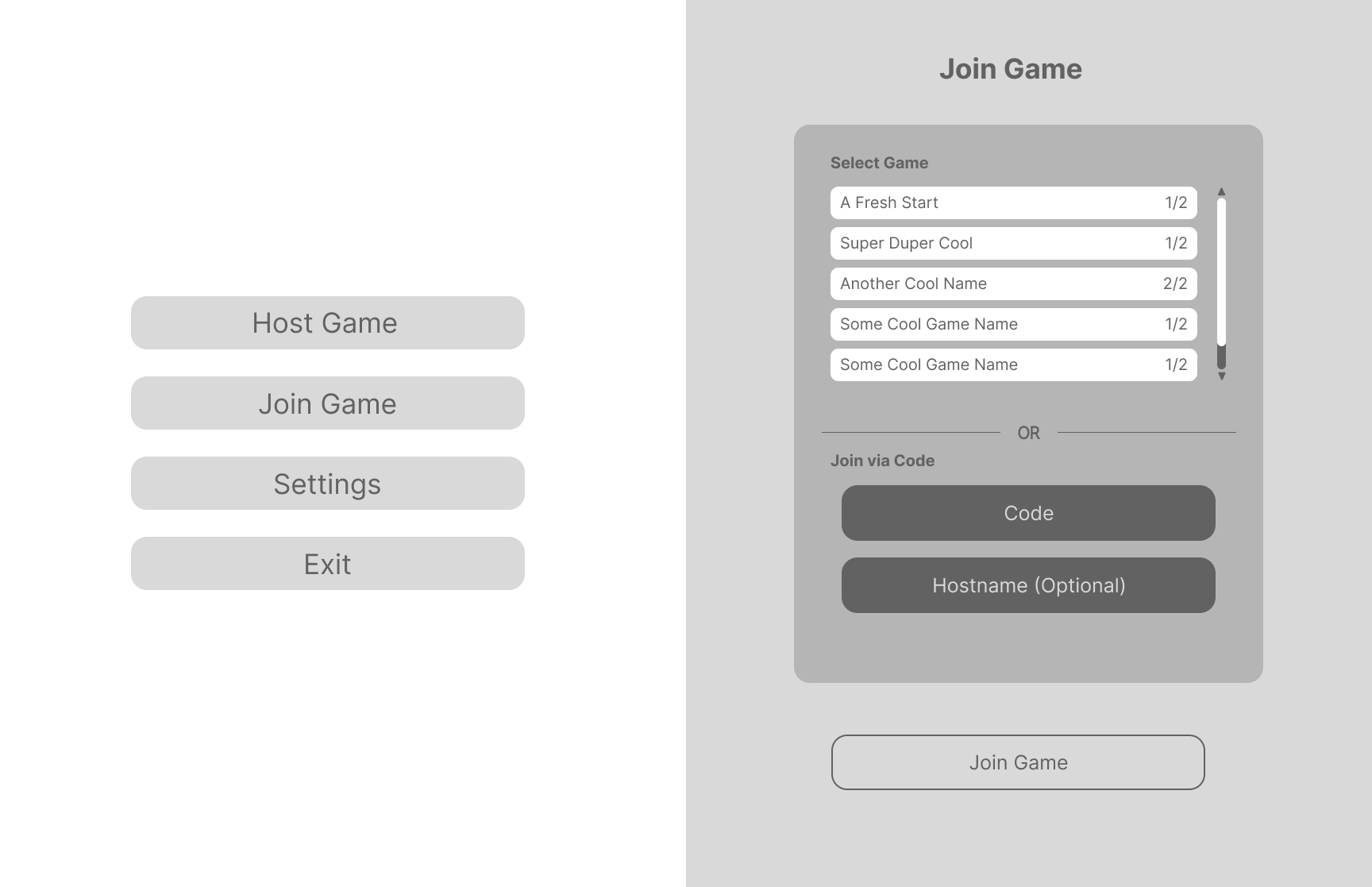
Implementation - Version 1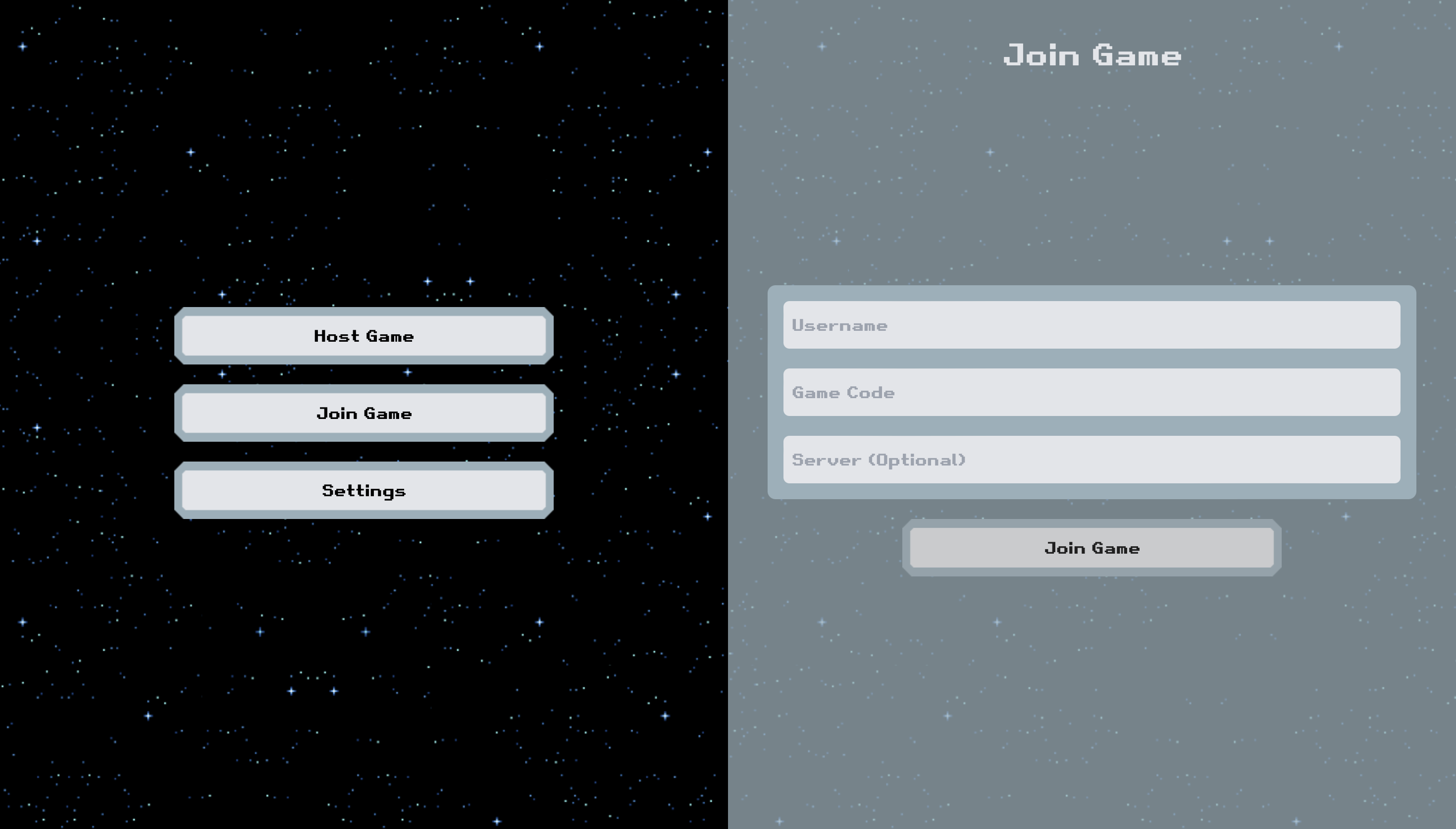
Implementation - Version 2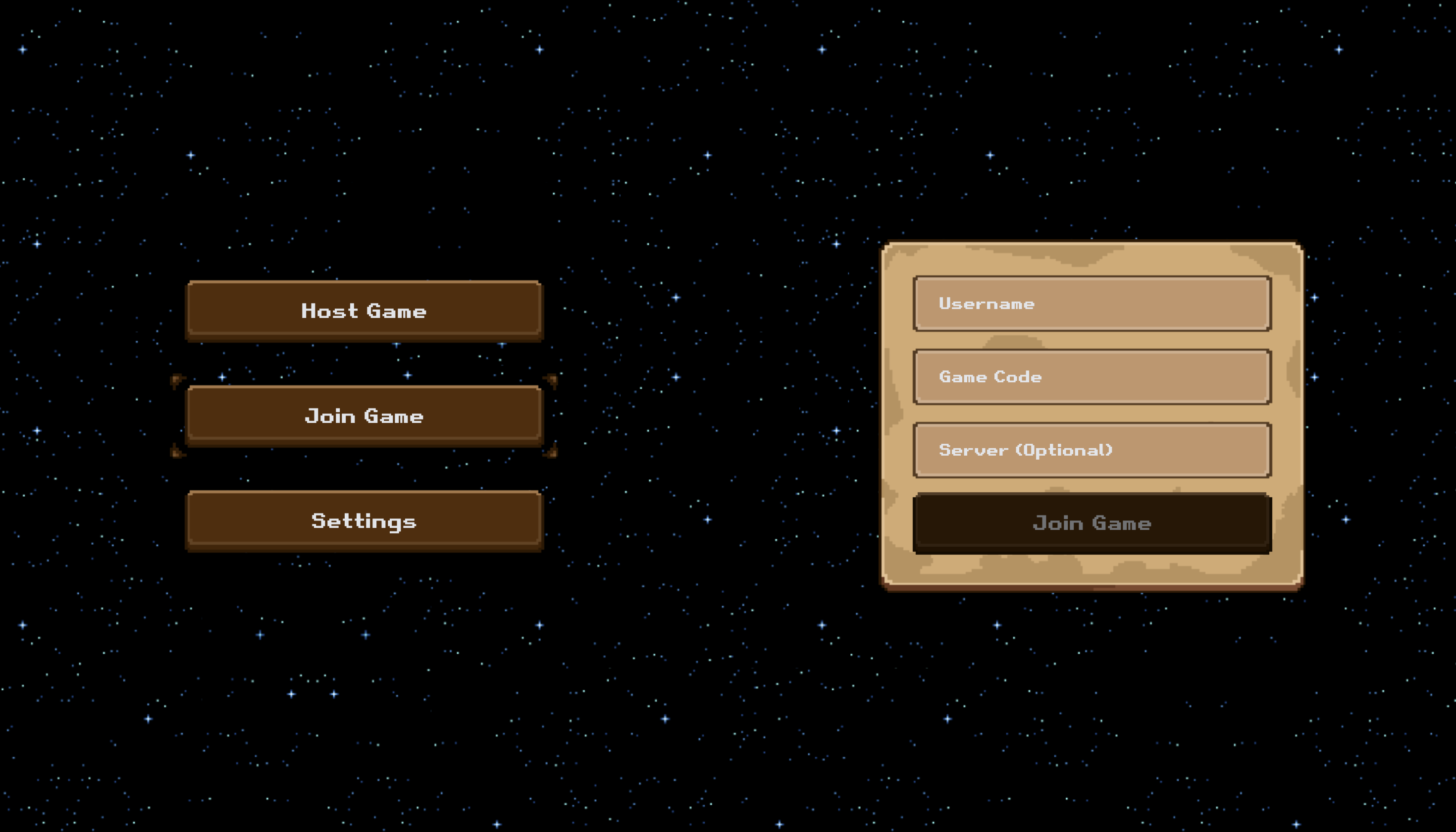
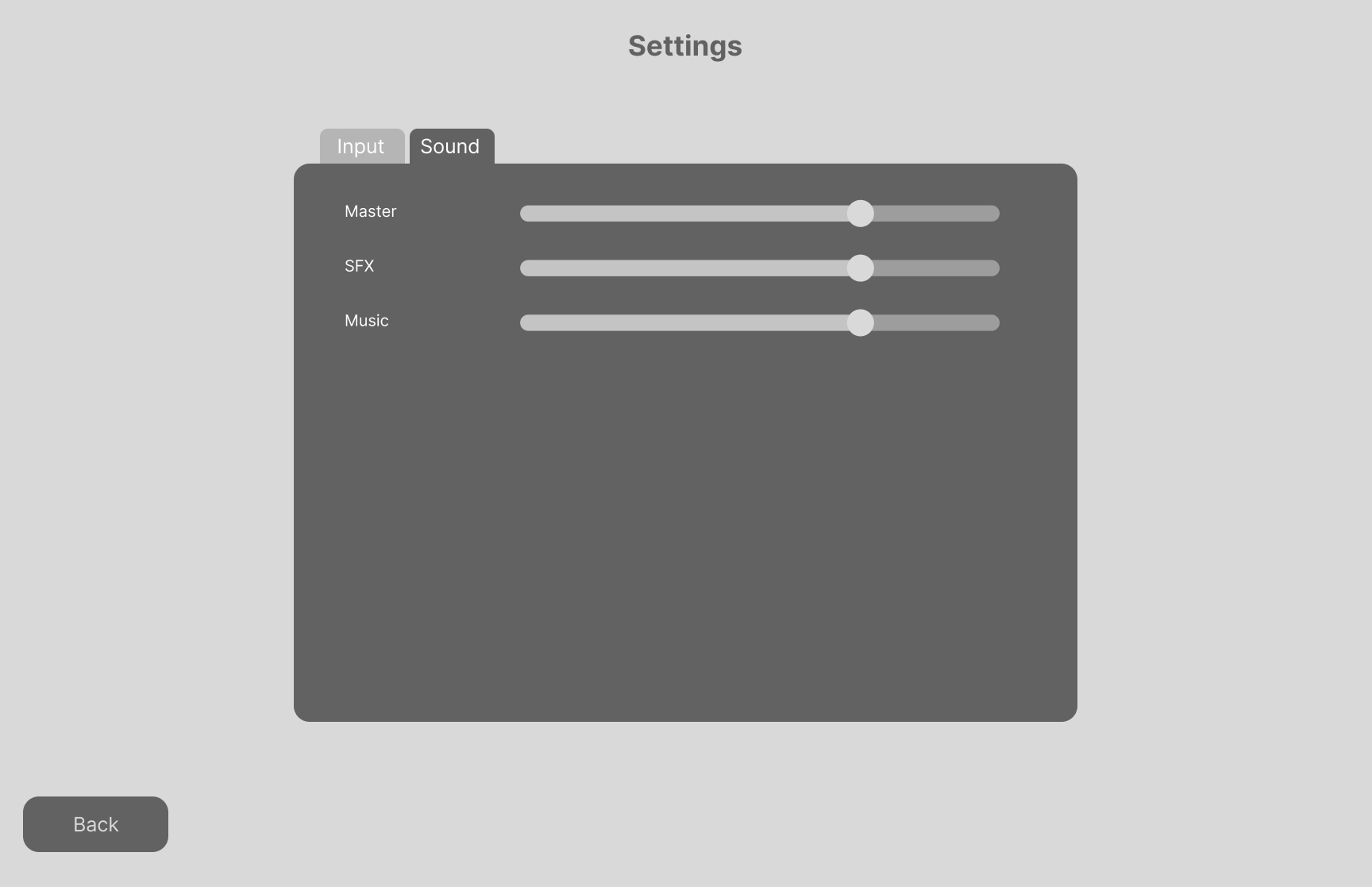
Startup Screen + Settings
Layout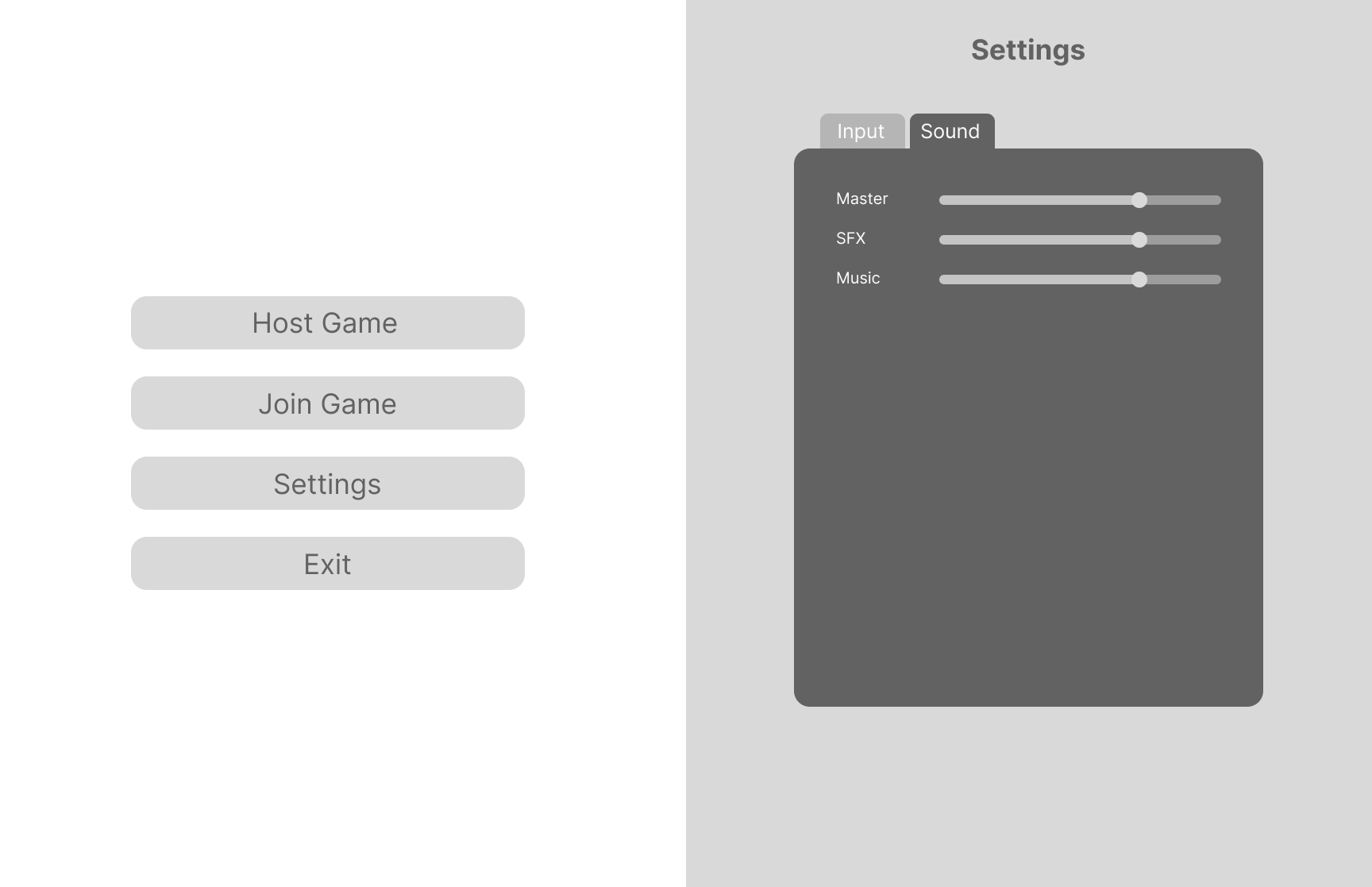
Implementation - Version 1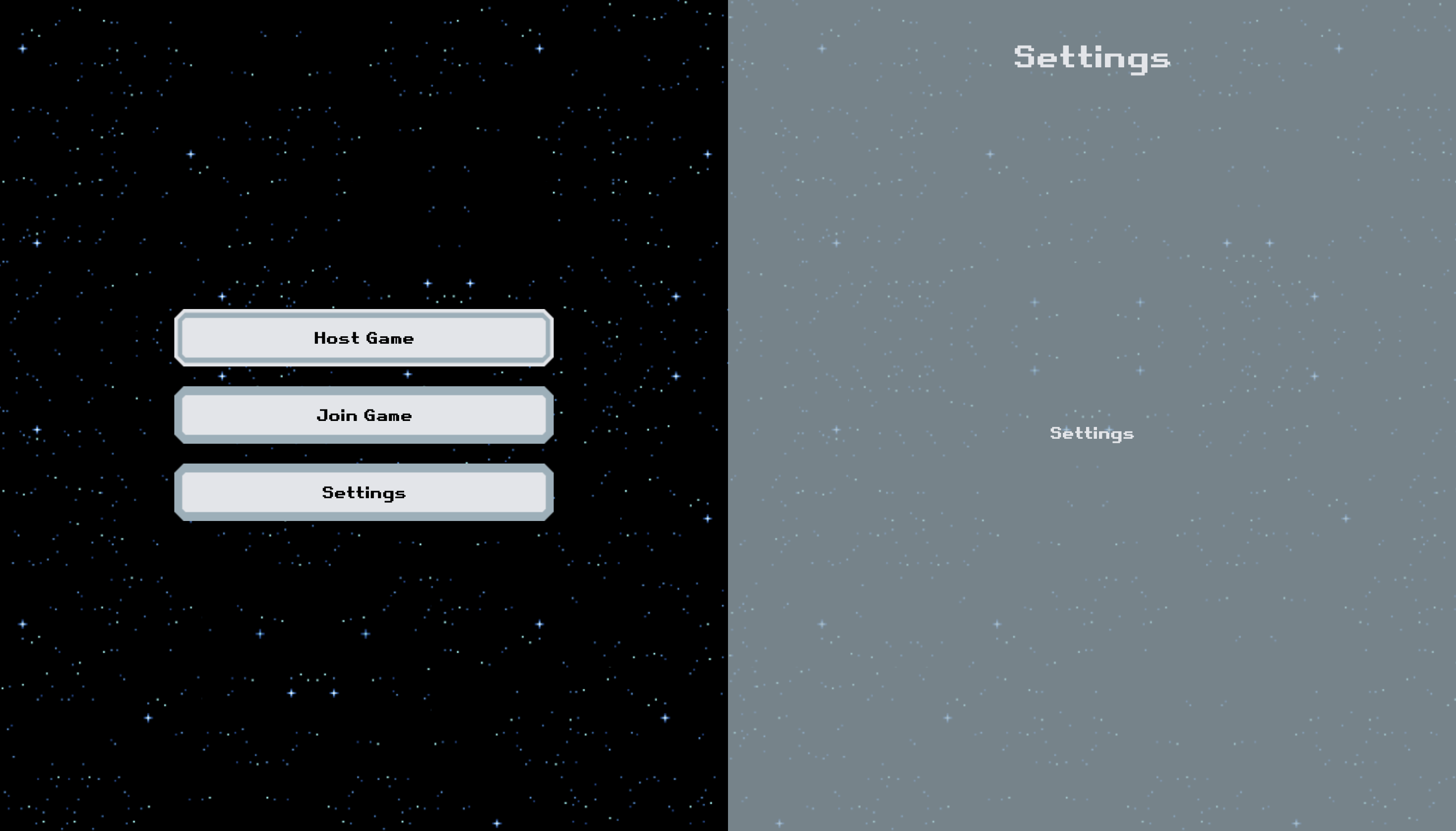
Implementation - Version 2
Implementation - Version 3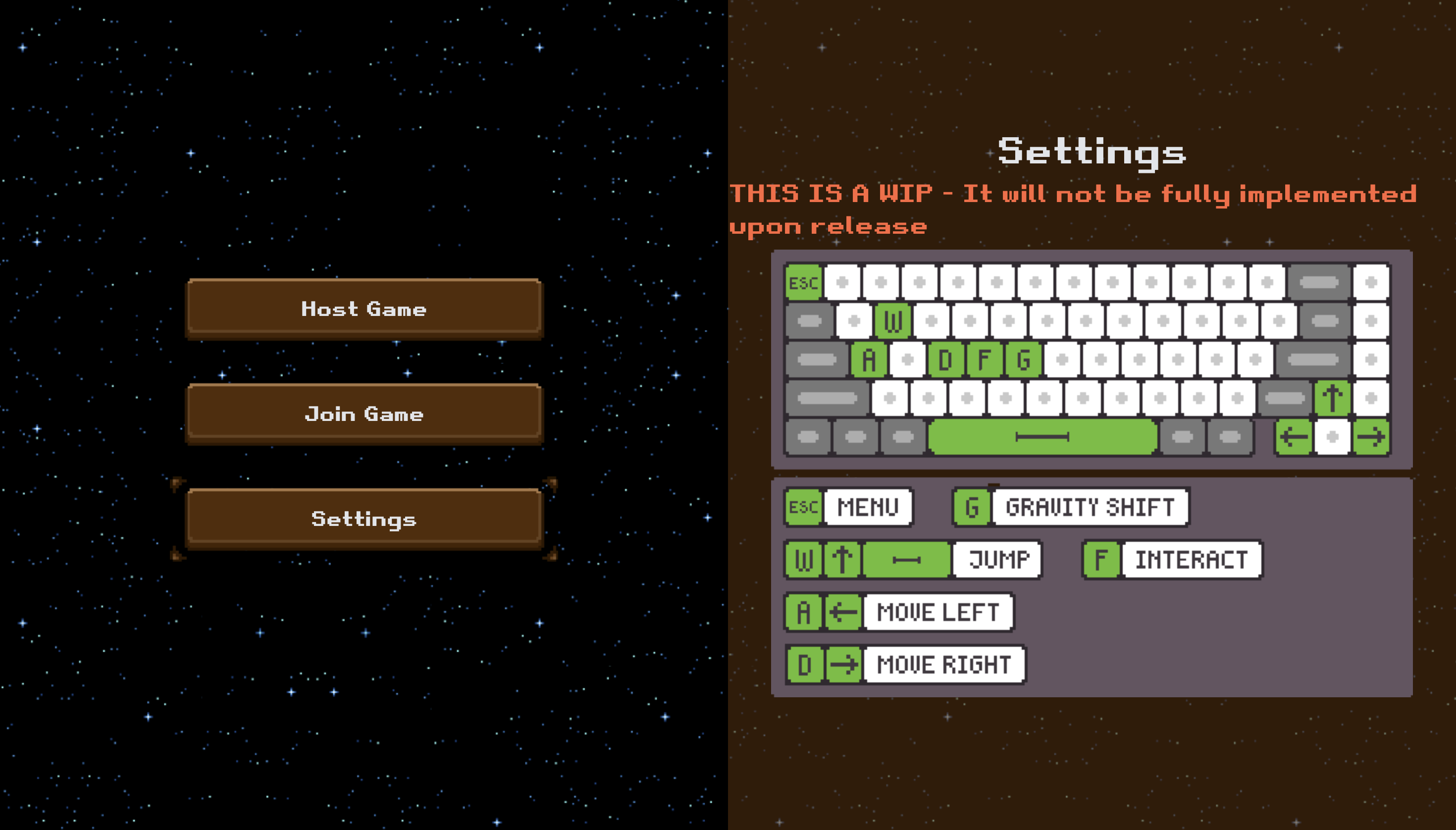 Key settings, so players know how to move and interact with the characters.
Level Selection
Layout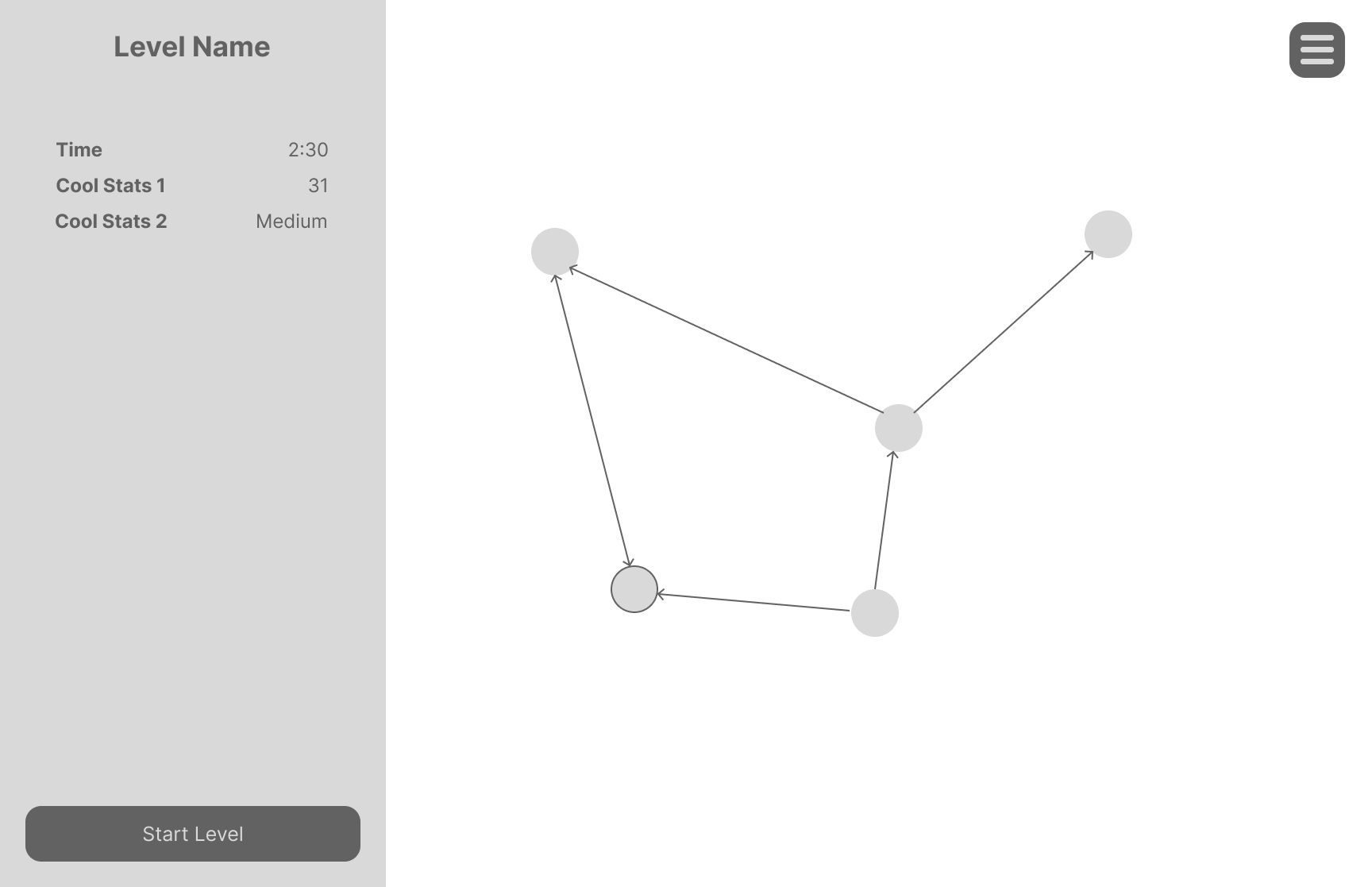
Implementation - Version 2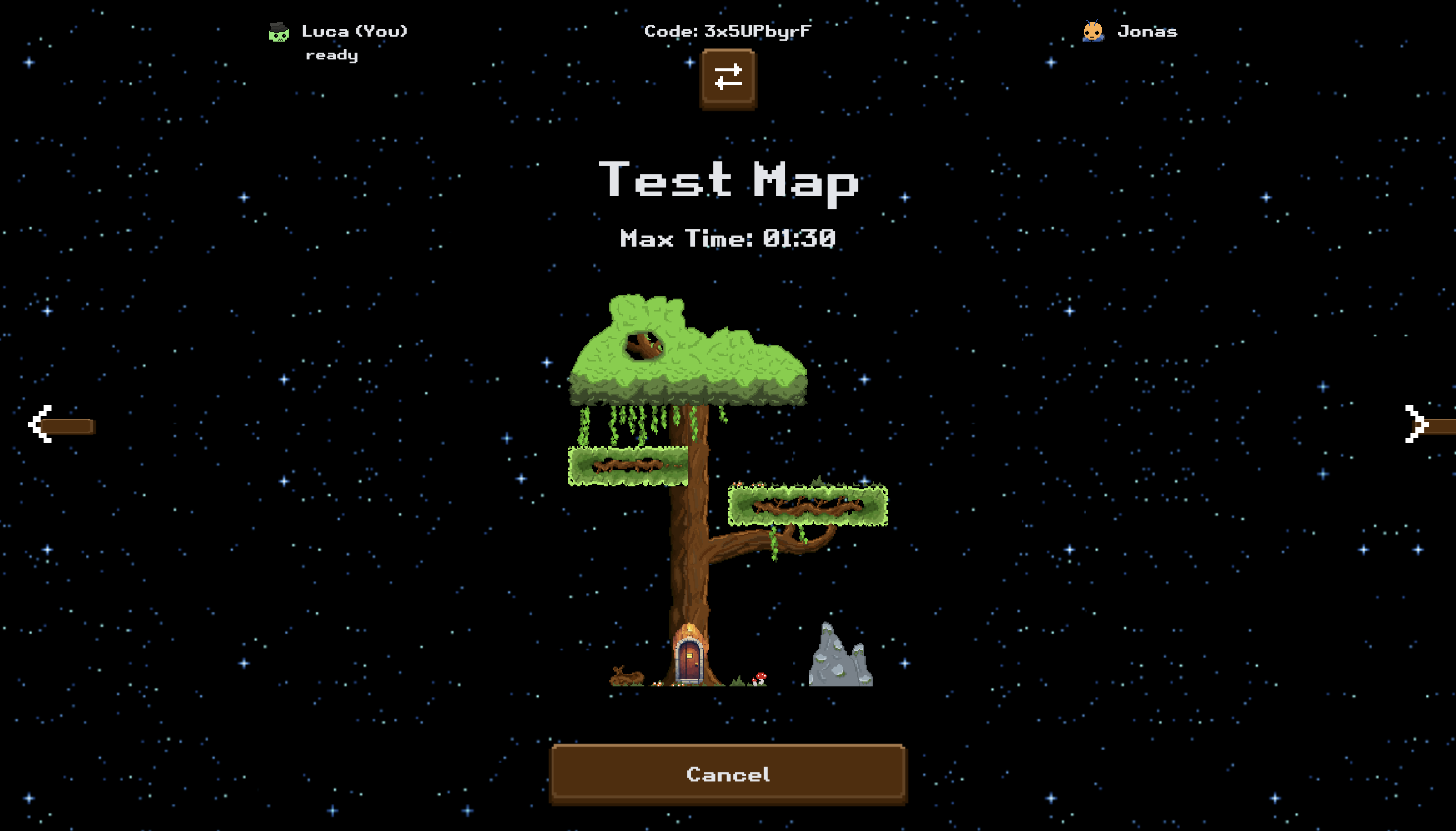
Implementation - Version 3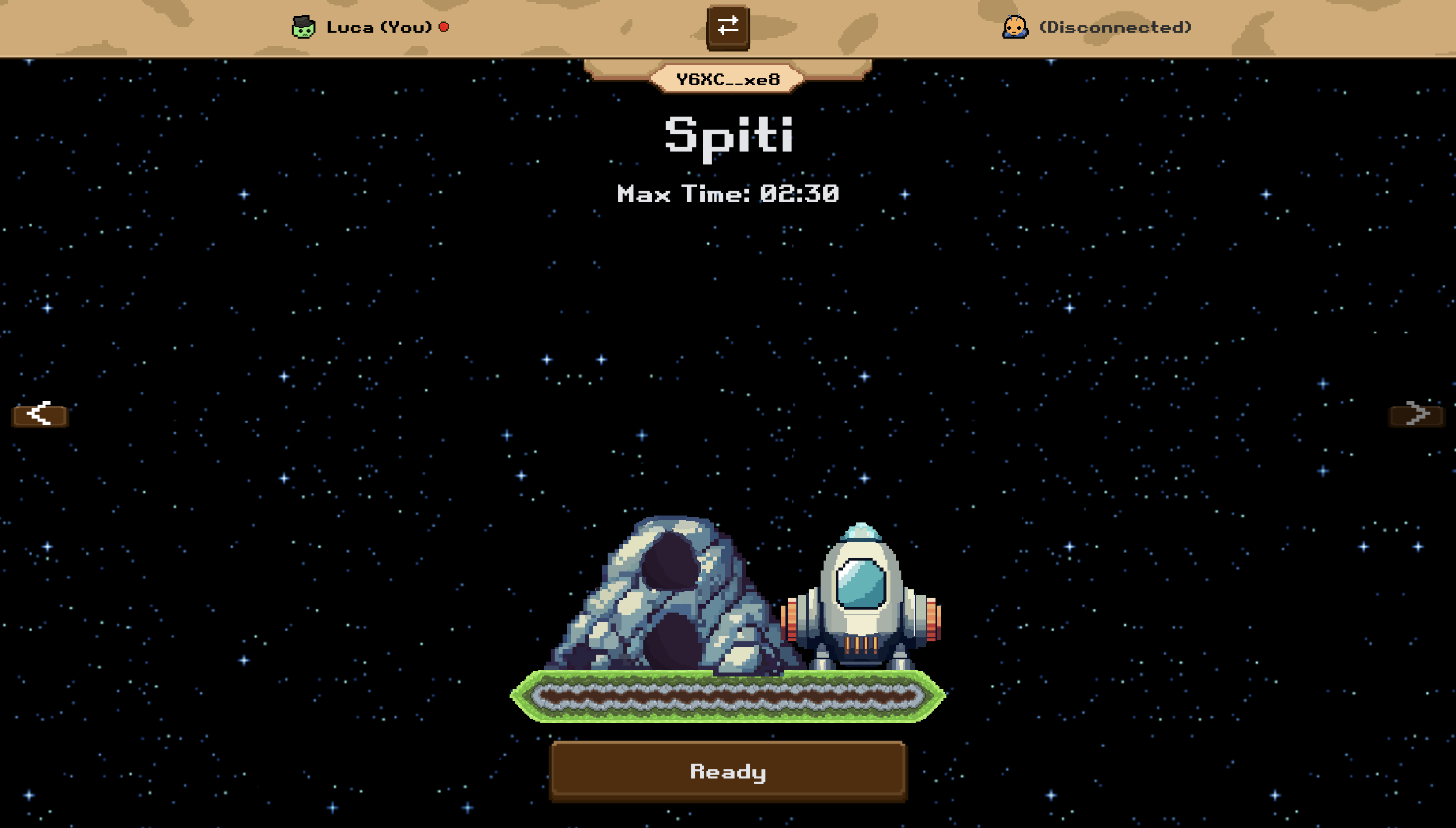
Level
In the tutorial levels, the GUI will show the player how to use the 'Gravity Shift' by showing a speech bubble when one player votes for a 'Gravity Shift'. 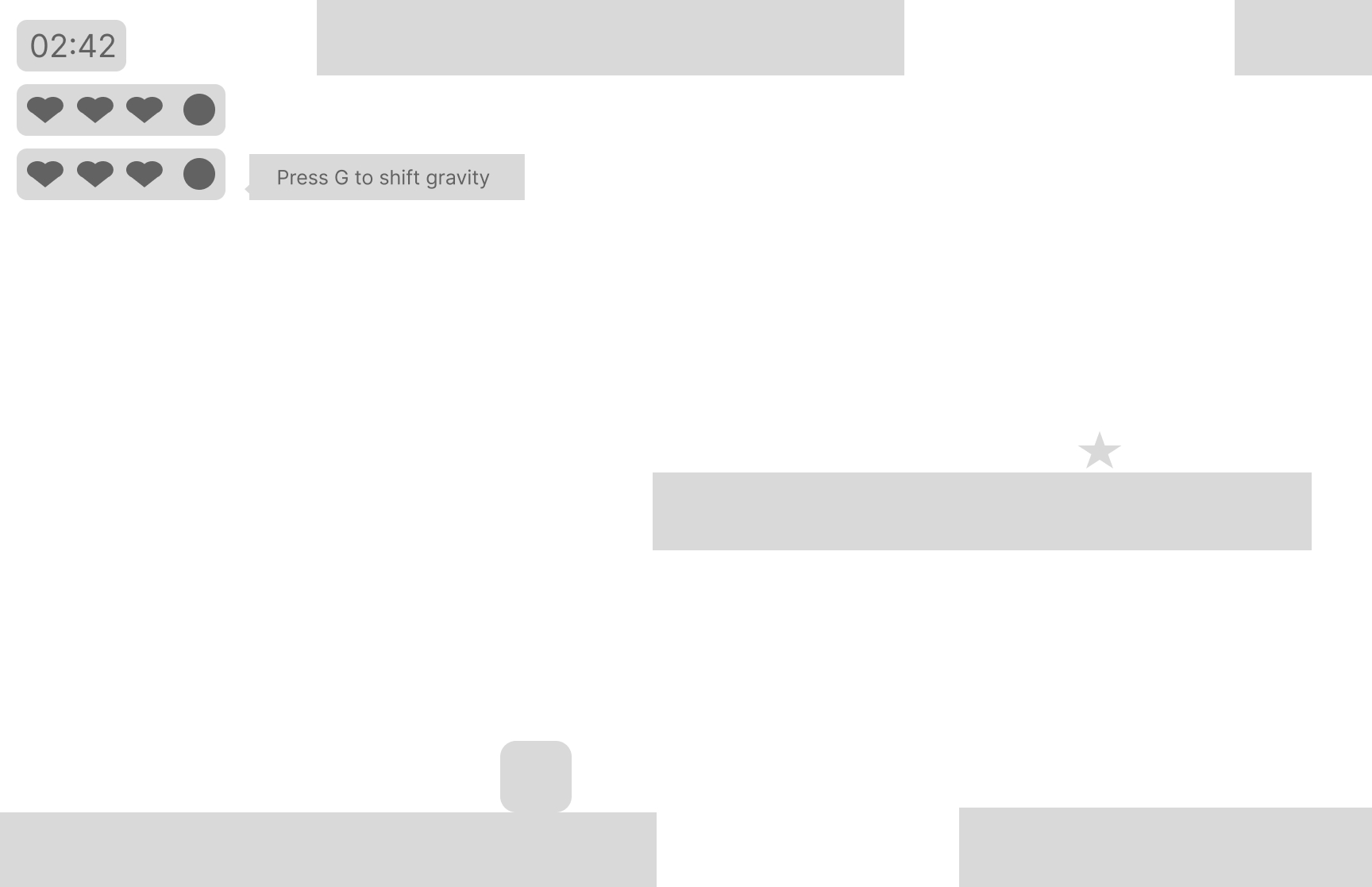
Learn more at: world-design
Level Pause
You can open the pause menu by pressing the ESC key. Layout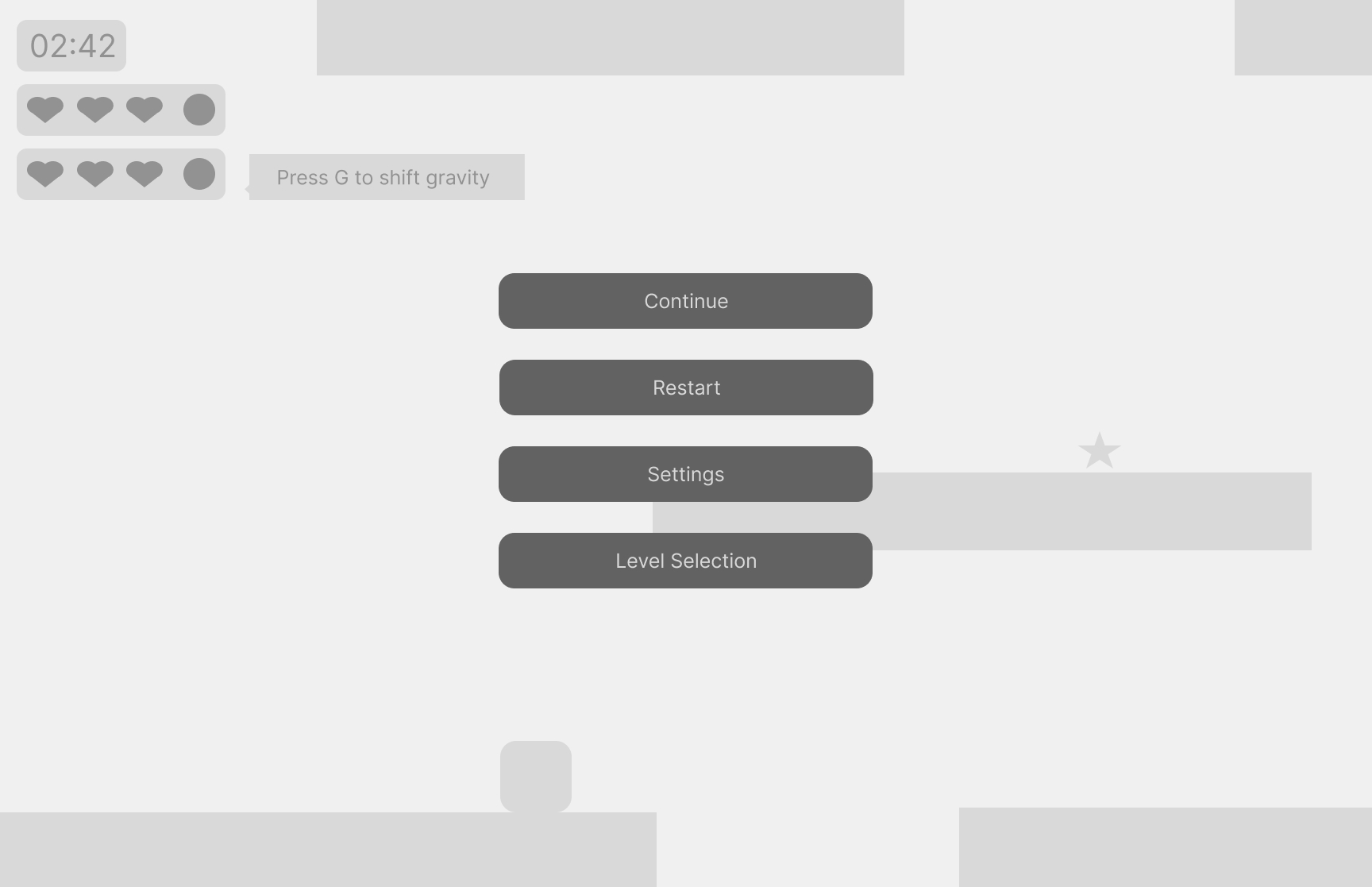
Implementation - Version 1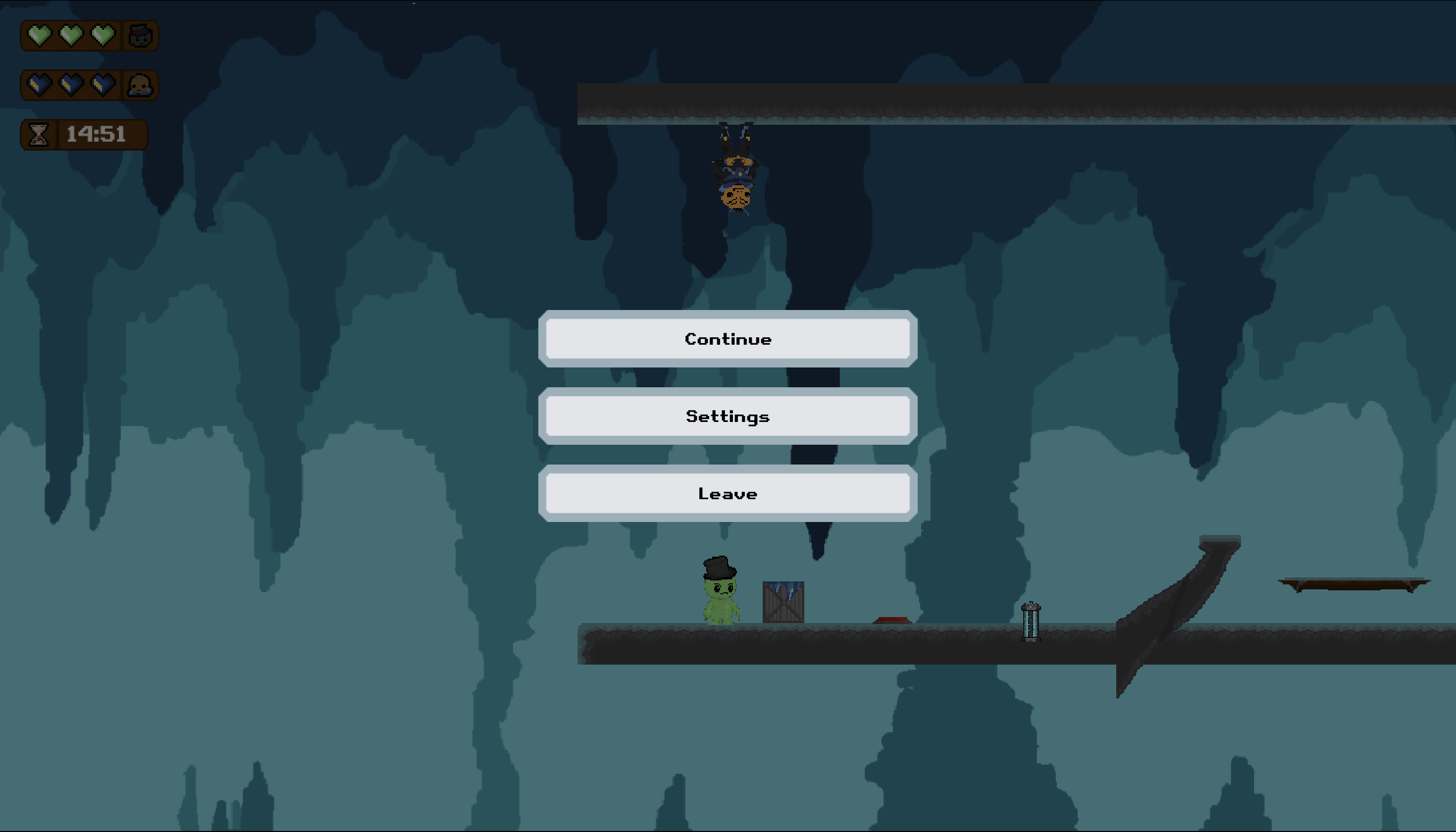
Implementation - Version 2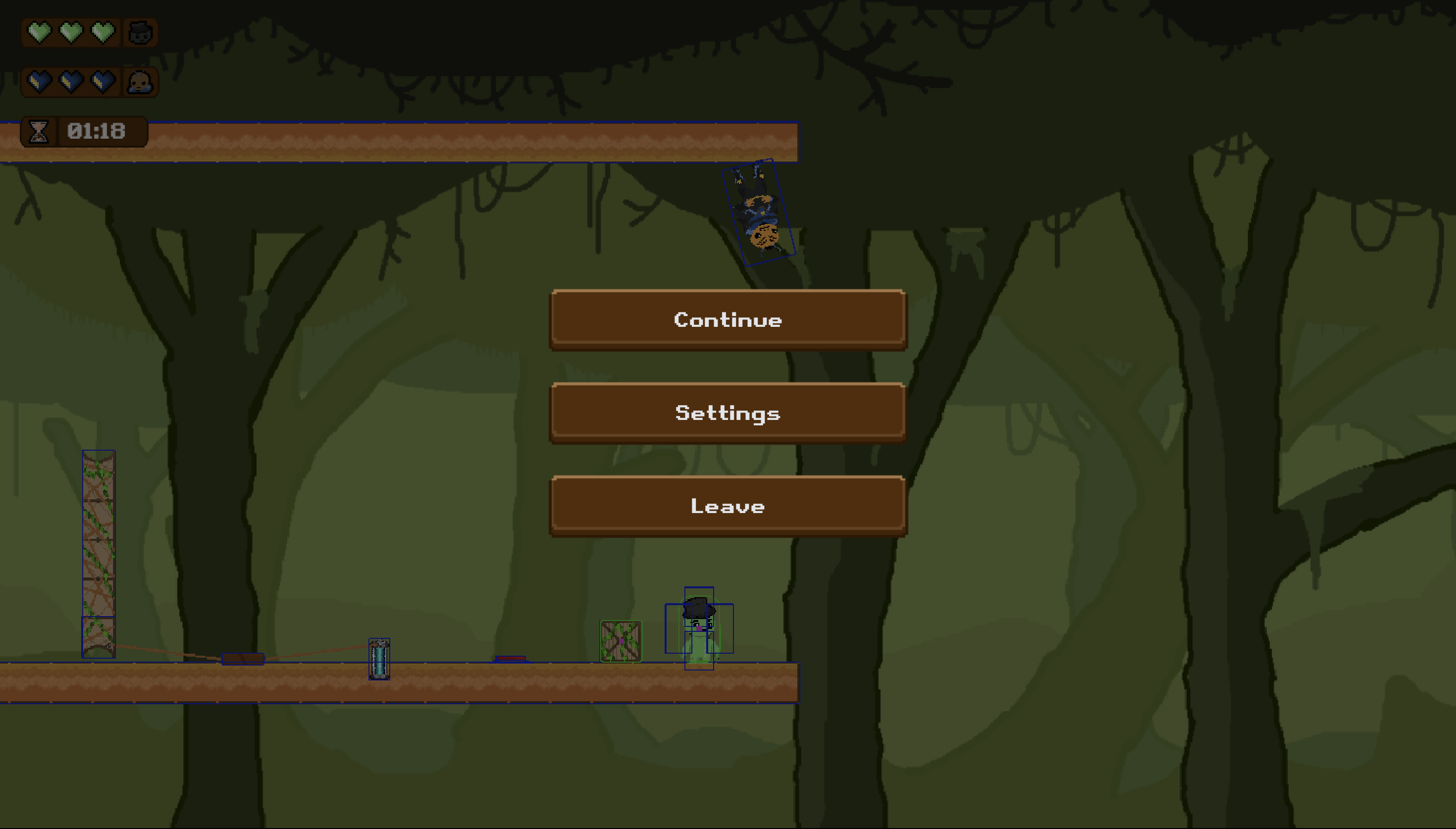
Game Menu
Layout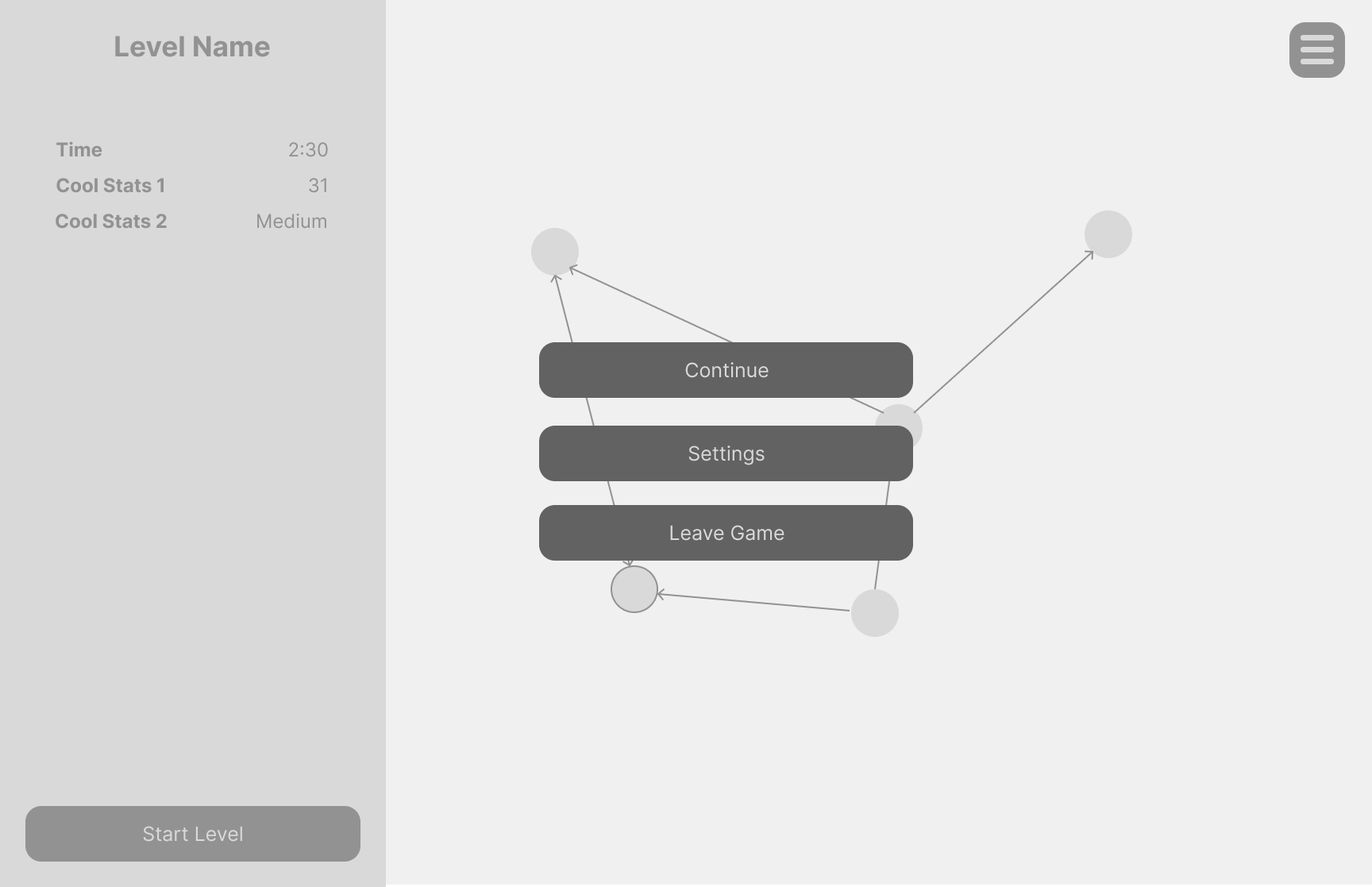
Implementation - Version 1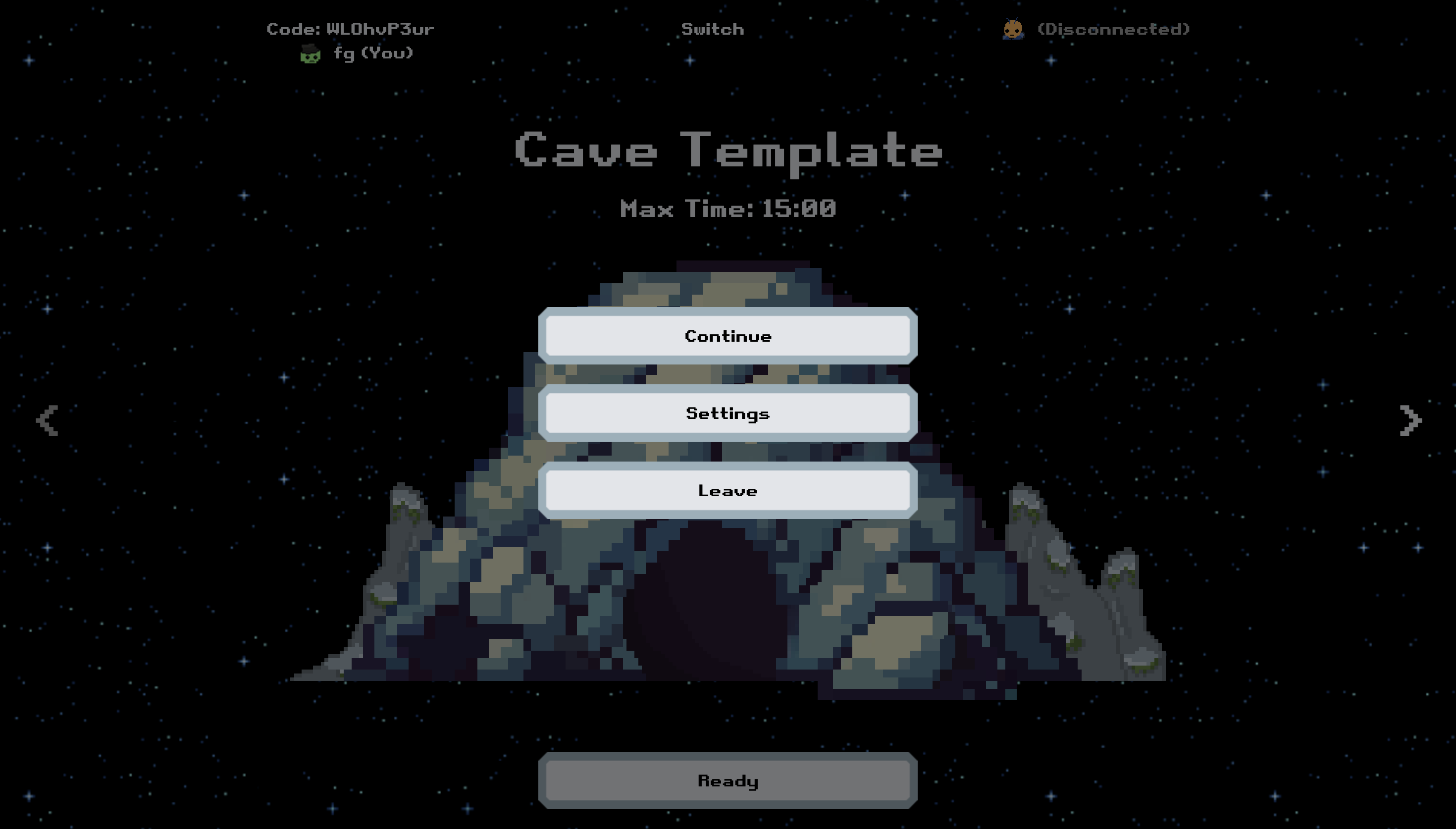
Implementation - Version 2
Game Over Screen / Level Completed
Layout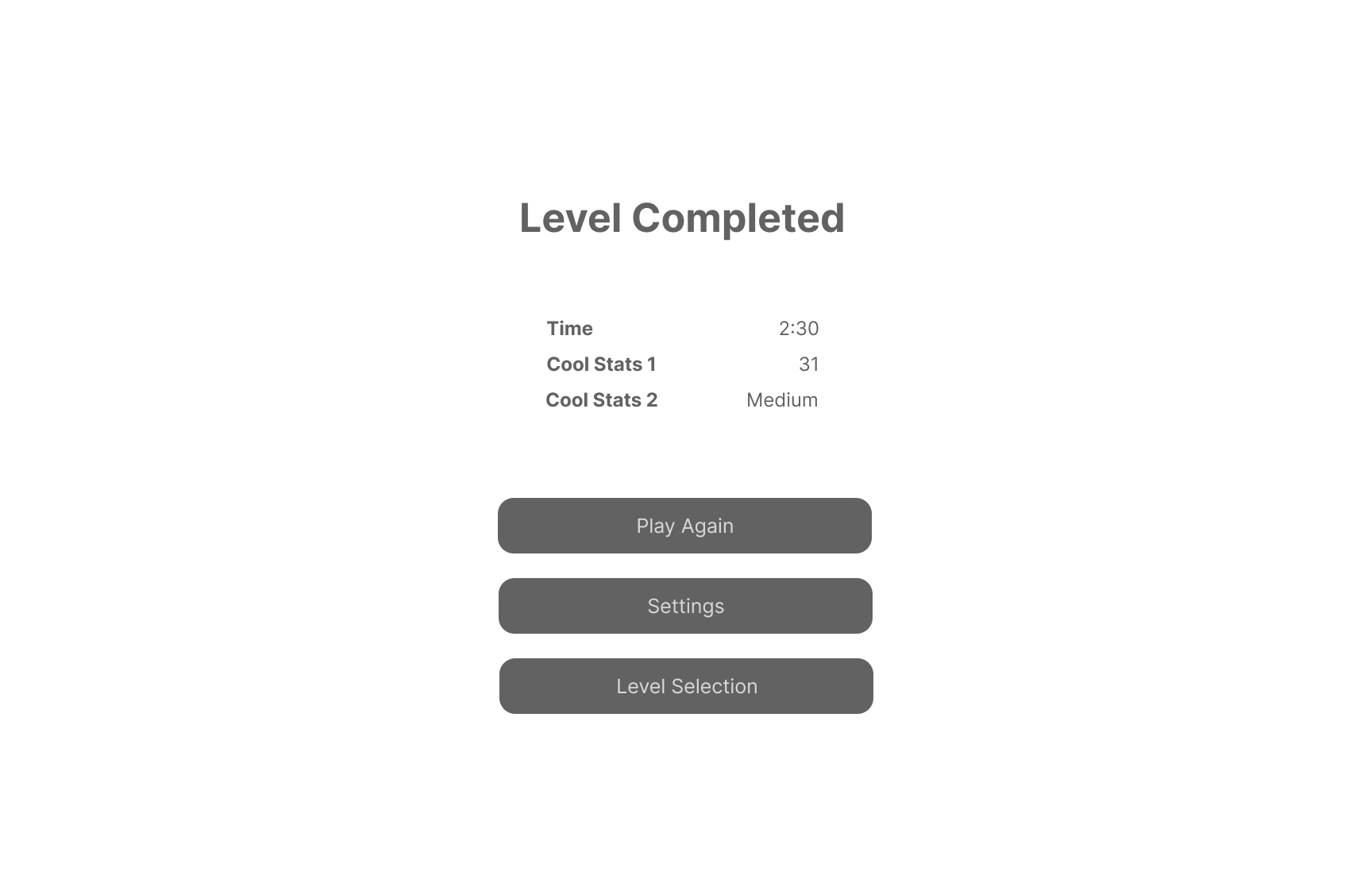
Implementation - Version 2
Implementation - Version 1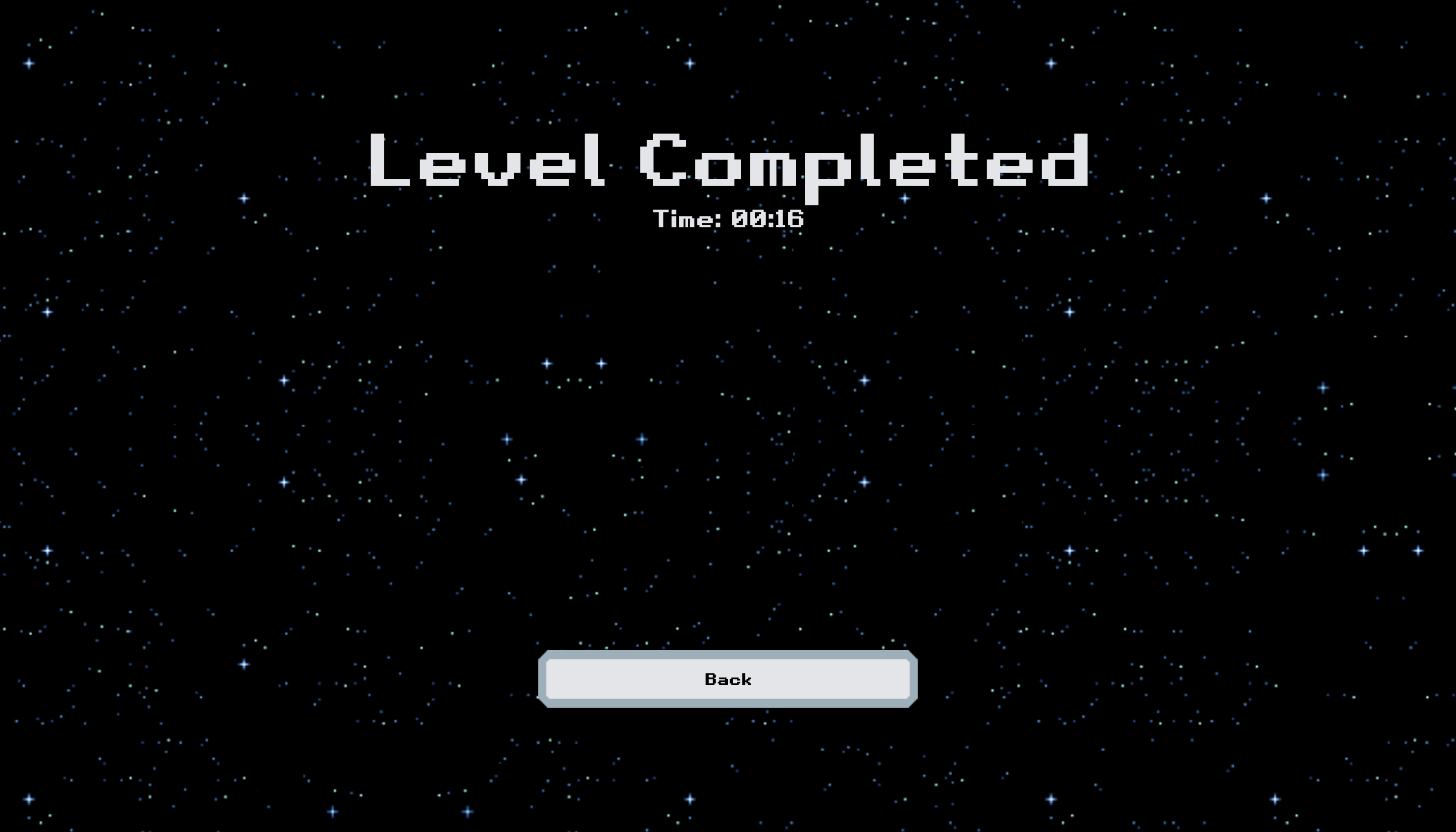
Implementation - Version 2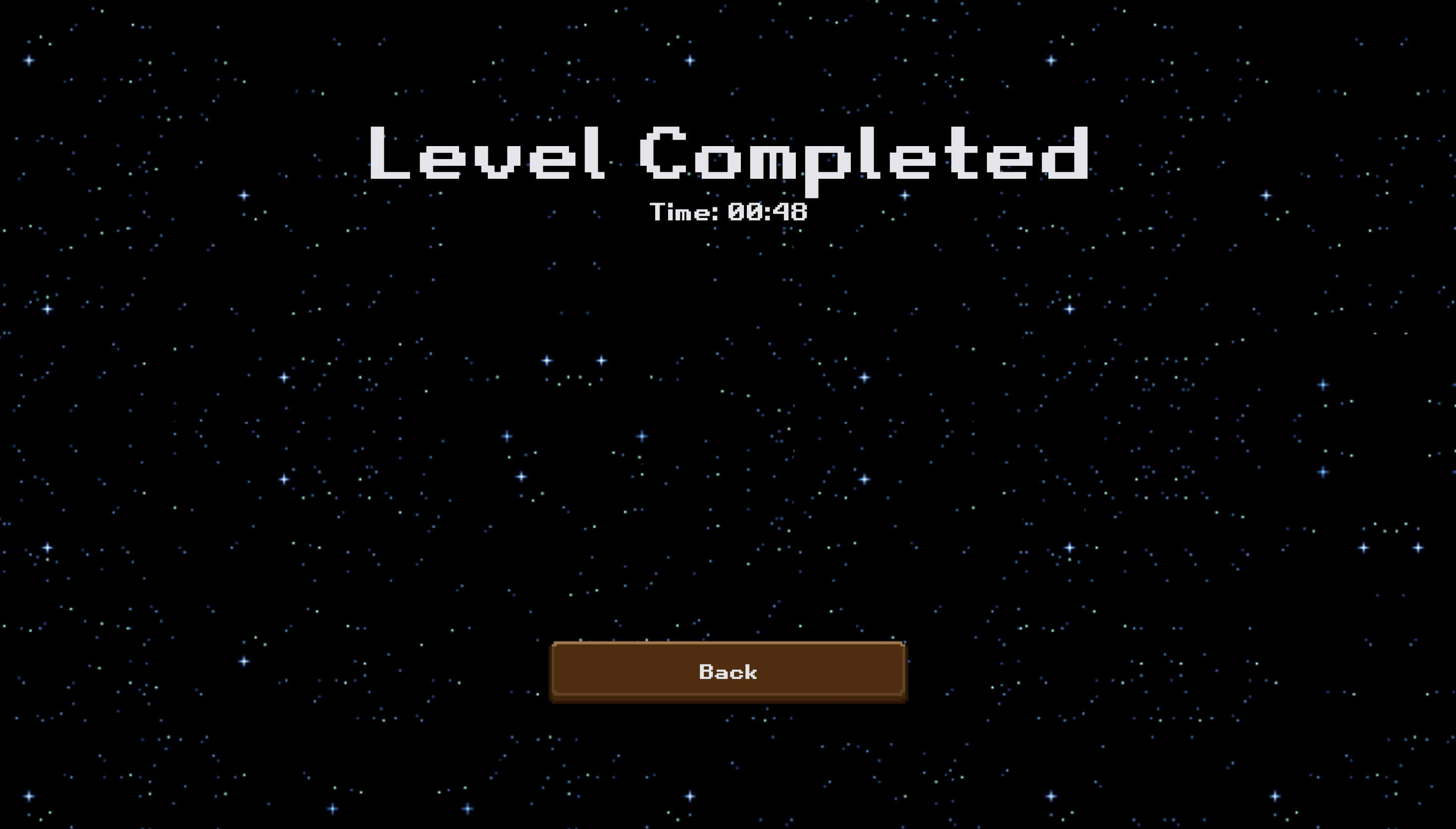
Settings
Fatal Error
Layout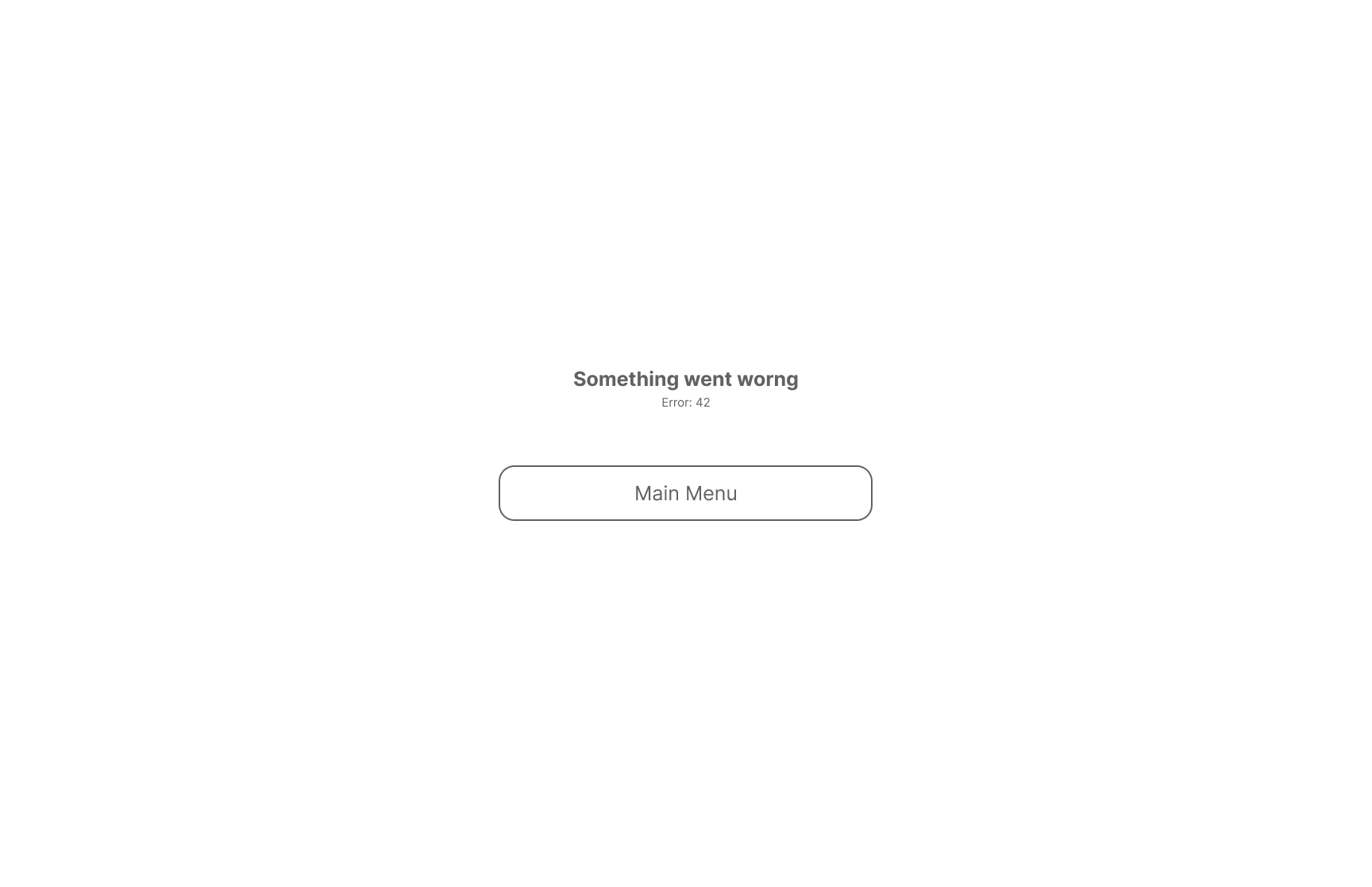
Implementation - Version 1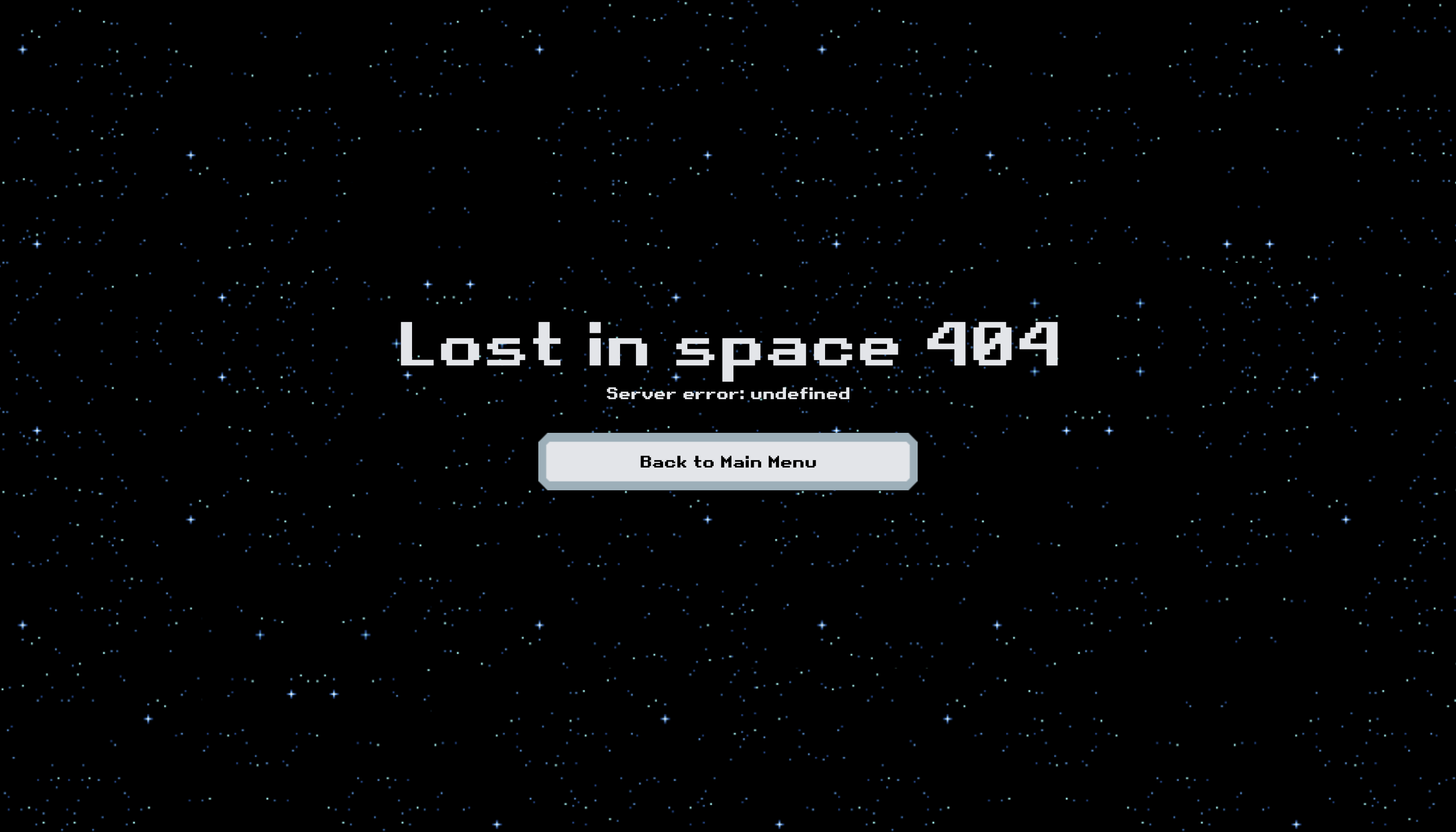
Implementation - Version 2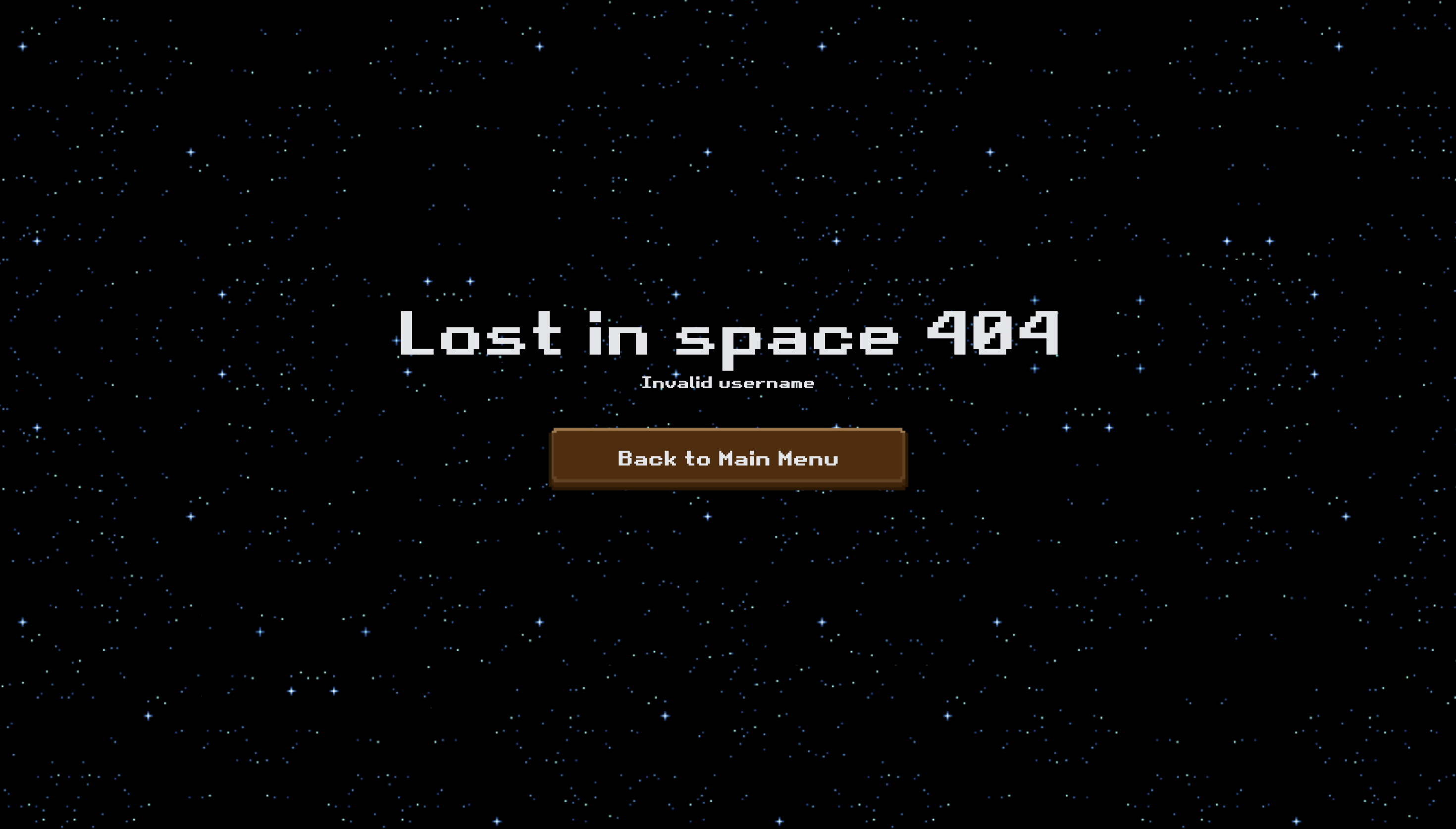
Level Loading Error
Layout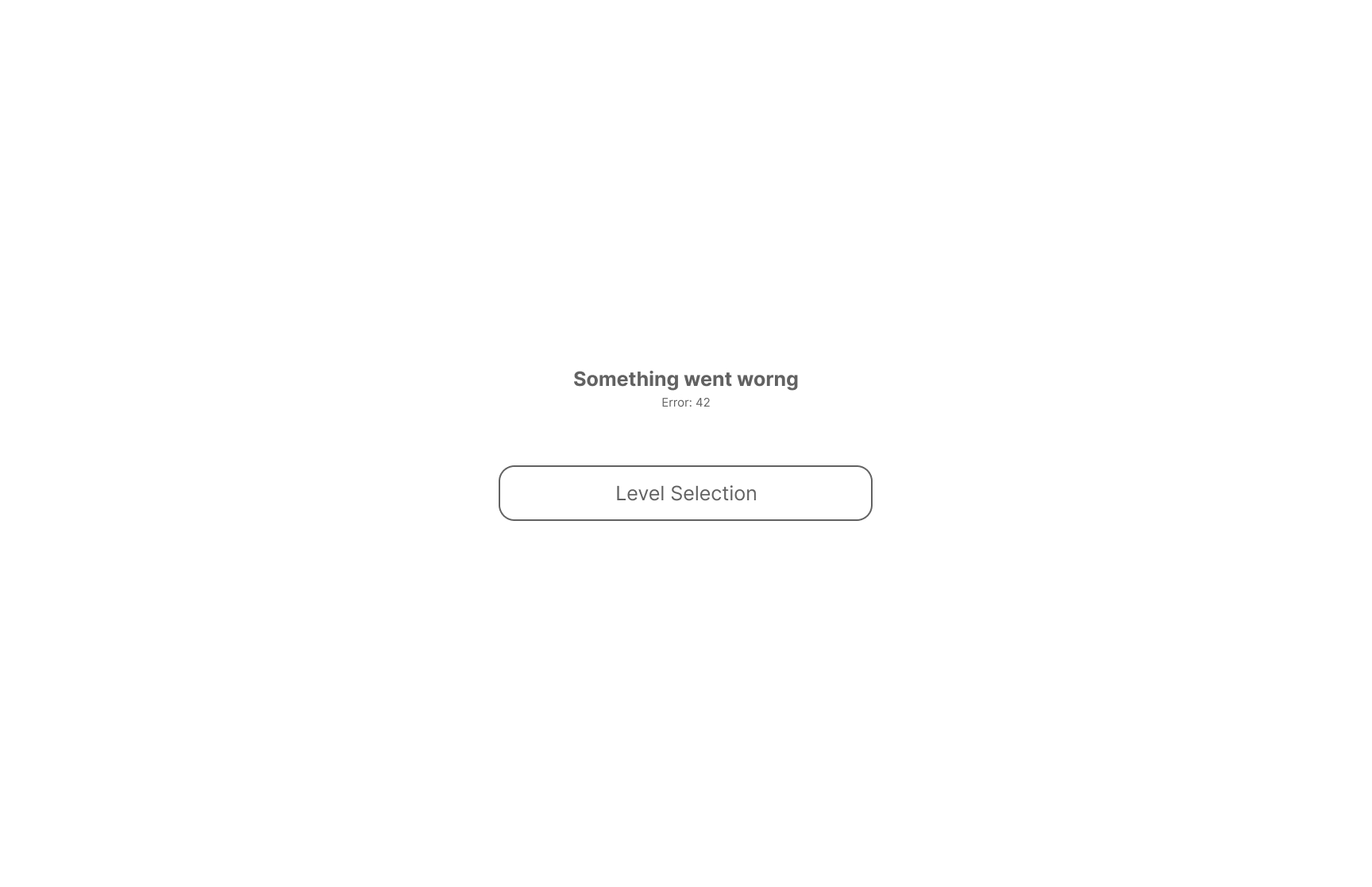
Implementation - Version 1
Implementation - Version 2
Example Loading Screen
Loading screens are always the same and only show a loading indicator or text. Layout
Implementation - Version 1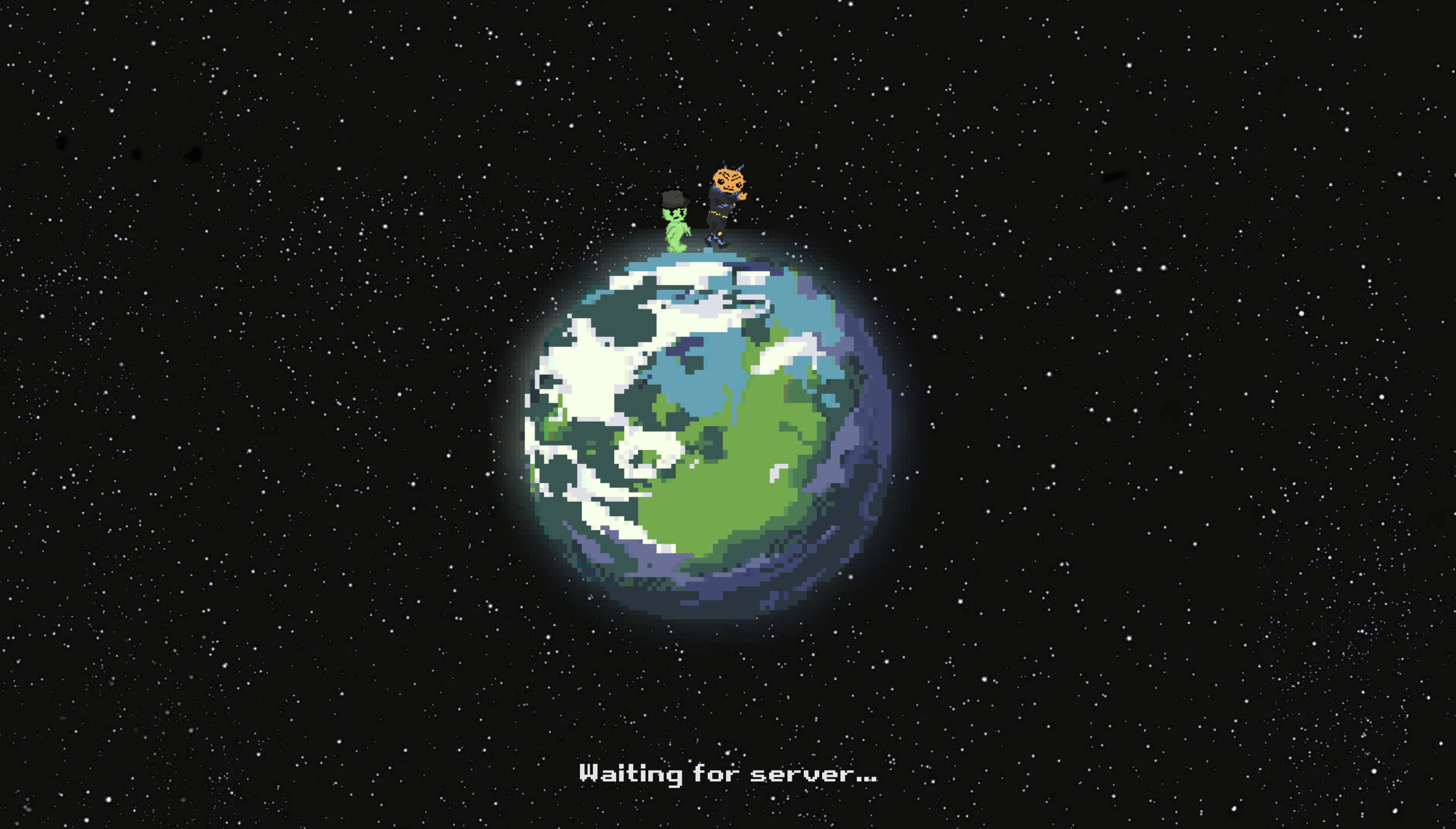
Rules for Interface Design
Consistency (as much internal and external consistency as possible)
- The GUI is designed in pixel-art. That creates direct associations with the in-game environment.
Allow frequent users to use shortcuts (balance between shortcuts for experts and detailed help for beginners).
- there are not enough possible movements for defining different shortcuts. We provide a list of key definitions.
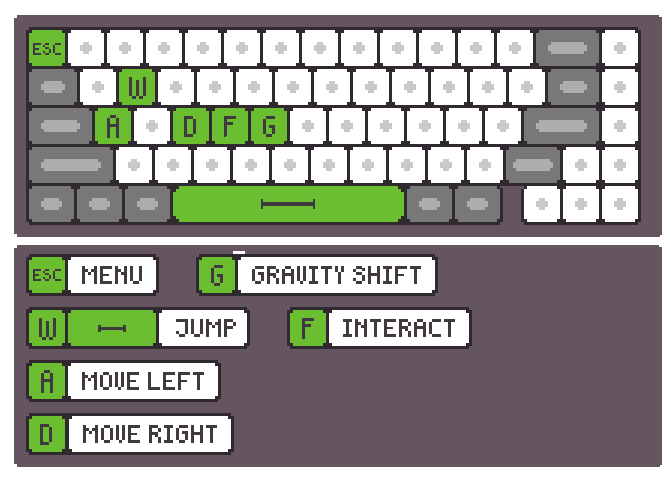
- there are not enough possible movements for defining different shortcuts. We provide a list of key definitions.
Provide informative feedback (feedback on current functions or system status)
- We will implement a pixel-art loading bar, that is nice to look at, so that no player wants to quit the game earlier.
- A health, time and gravity vote information bar is also integrated at the top of the screen.
Design completed dialogues (this is intended to make the user aware of when a function/chain of commands has been completed) separation of single working steps)
- Dialogues will be implemented nearby the gravity vote icons in the information bar, when a player voted for 'Gravity Shift'.
Provide simple error handling (if possible, comprehensible information about potential causes should be given) .Offer an exit to return to normal system/program operation.
Normally the intern game regulations throw a player back to the last spawn point, when he needs to escape a spot, which is not excepted to be entered. The GUI also shows a popup warning or information window with a button. The button leads back to the last spawn point.Allow simple reversal of actions (a sufficient undo function)
- See rule #5: The GUI also shows a popup warning or information window with a button. The button helps to get back to a special game state.
- Players can also enter the main menu and use the "Restart Game" button.
Support internal and local control (the user should always have the feeling of being in control of the system/program).
- By using the main menu window, the user will always be under controll.
Reduce short-term memory queries (the user should have to memorise as little system information as possible)
- Players won't need to memorize any short term information, because every important movement and action by the player and his teammate are visually saved on the GUI.
- They can find their own and their teammates healthbar, a time tracker/ stop watch and the player's 'Gravity Shift' votes in the information bar.
- Therefor they won't need to use short-term memory in terms of system and gameplay information.
Help and documentation (The help function must be permanently available, reduce complexity)
- The main menu will always be visible for the players. They can use it to restart the game, switch levels, see their progress, character health information and a lot more.
Interface Design
- Does this interface tell me what I need to know right now?
- Yes, the GUI shows all important information for the player.
- Is it easy to find the information I'm looking for, or do I have to look around for it? (Are the menus nested so deep that they hide information from the player?)
- There are no nested menus.
- Can I use this interface without having to read instructions elsewhere?
- Except the level GUI, all other GUIs are self-explanatory.
- The level GUI will show a tutorial level, where the player can learn all important movements and actions.
- Are the things I can do on this screen obvious?
- Yes.
- Do I ever need to wait for the interface to load or play an animation?
- No, when the client is waiting for the server, a loading screen will be shown.
- Are there any tedious or repetitive tasks that I can shorten (with a shortcut key, for example) or remove entirely?
- No, because the ui is very simple.
Competitor Analysis → depends on Genre
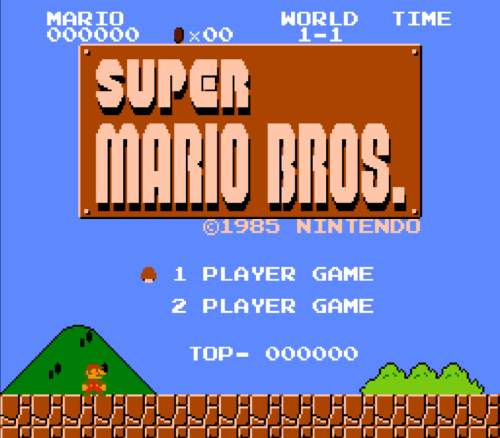
- simple pixel-art GUI:
- texts and images as buttons, information and dynamic GUI information
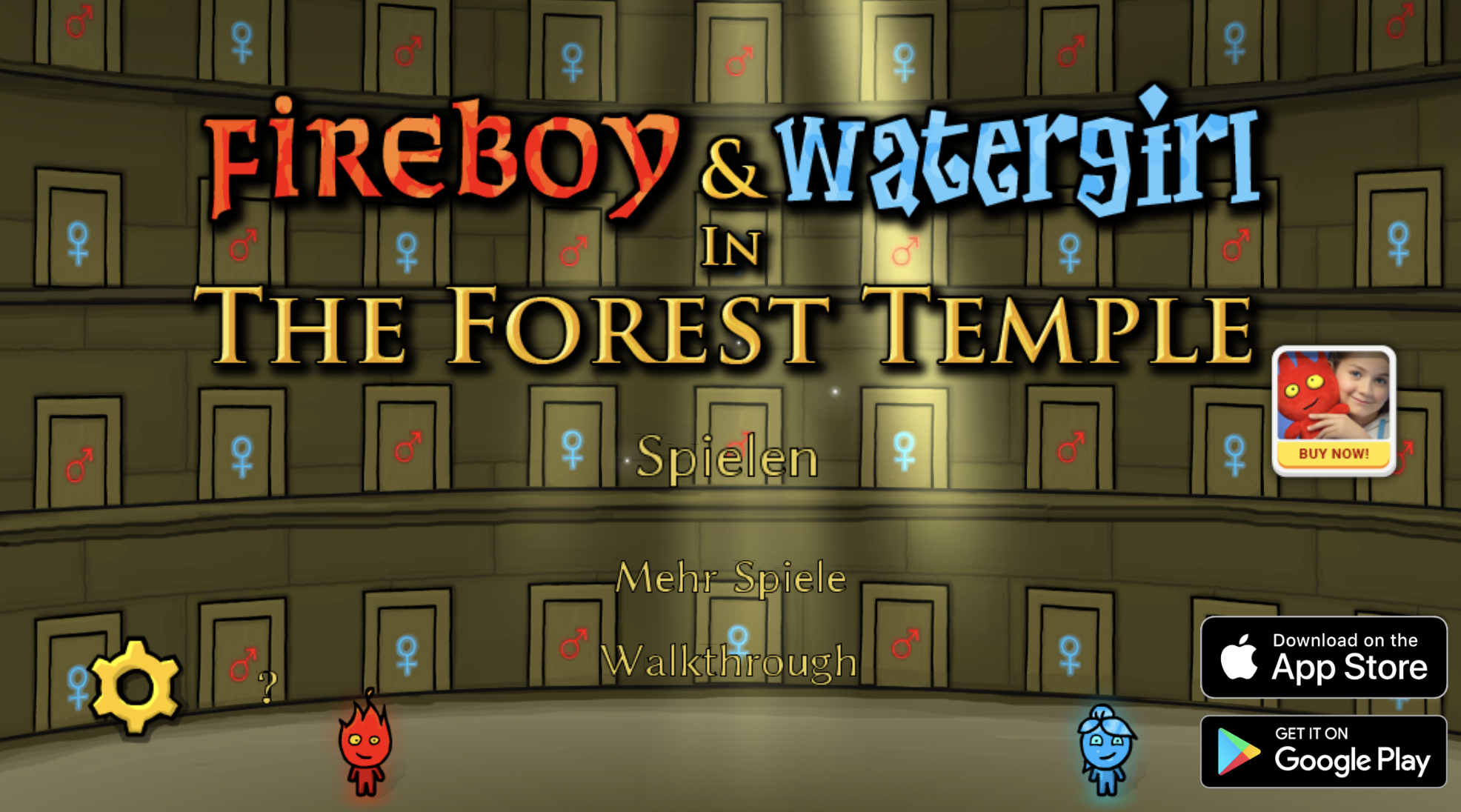
- simple GUI:
- fonts associated to game
- advertisement for downloading the app
- simple logo, texts as buttons and settings
The fourth wall (between player and game world makes immersion difficult)
- Is the component part of the game story? (Is it part of the narrative?)
- No
- Is the component part of the game space? (Is it behind the fourth wall?)
- The GUI is behind the 4th wall.
Requirements for the GUI
What the Player needs to know
- What is happening in the game world?
- 'Gravity Shift' status in information bar at the top.
- Am I making progress?
- scores and clock in the information bar.
- What should I do next?
- simple speech bubbles and cutscenes for more information regarding the players current situation.
- How did I do?
- scoreboard, review by stars and next/ previous level buttons after each finished level.
Screen Layout
Informationdesign:
What information should be presented?
- Time left, displayed as a stop watch.
- How many lives each character has left.
- Which player wants to shift gravity?
- Counter for collected points and items.
- Collected Items bar, so the players can see their collected items and other collectibles, so they do not have to remember everything.
How and with which media should the information be presented? -> ‘Look and feel’ concept:
- Choice of a visual metaphor + ‘personality’ of the application
- The information will be presented visually and by sound effects.
- Visually: Players can see all the information in the information top bar on the screen and at the speech bubbles.
- Sound Effects: By collecting items, gaining points, having a specific amount of time left for completing the game, the game gives the player positive associated sound effects to recognize what they have achieved.
Non-Diegetic UI:
- Typical game UI as overlay on top of the game.
- They can be removed completely from the game's fiction.
- Used in information bar.
- 2D graphics
Diegetic UI:
- UI exists in the game world.
- Choosing levels is displayed on a Game Map.
Interactiondesign:
Where should the user be able to influence the application?
- The user will be able to change some sound settings:
- Buttons sound effects (on/off)
- In game sound effects (on/off)
- Background music (on/off)
- General sound volume (slider)
- The user will be able to change some visual settings:
- Theme colors for the UI
- Choose different characters
- The user will be able to change some In-Game actions:
- Key assignment (by clicking which key on the keyboard does which action appear? E.g., click 'k' to jump)
- Level of difficulty.
- The user will be able to change some sound settings:
How should they be able to influence it?
- By the main menu settings, they can change it.
Which forms of interaction should be used?
- Mouse clicks
- Keyboard key clicks
Components → Dialogue boxes for cutscenes and ‘Gravity Shift’ votings → Help and support in settings